Linux下VNC使用

安装

VNC (Virtual Network Computer)是虚拟网络计算机的缩写。VNC 是一款优秀的远程控制工具软件。

VNC程序有多个软件包可选择,例如执行以下命令进行安装:

$ sudo apt-get install vnc4server
$ sudo pacman -S tigervnc

启动服务器程序

修改$HOME/.vnc/xstartup配置文件,我是用的xfce,配置如下:

#!/bin/sh

# Uncomment the following two lines for normal desktop:
# unset SESSION_MANAGER
# exec /etc/X11/xinit/xinitrc

[ -x /etc/vnc/xstartup ] && exec /etc/vnc/xstartup
[ -r $HOME/.Xresources ] && xrdb $HOME/.Xresources
xsetroot -solid grey
vncconfig -iconic &
startxfce4 &

然后运行服务程序,首次运行需要先设置密码:

$ vncserver

启动客户端程序

执行如下命令链接vnc服务:

$ vncviewer <host>:<DISPLAY>

例如要链接到10.0.0.101的1号DISPLAY,则是:

$ vncviewer 10.0.0.101:1

然后根据提示输入密码即可。

退出程序

如果要退出客户端程序,直接将程序窗口关闭即可。
如果要退出服务端程序,则在服务端执行命令:

$ vncserver -kill :1

修改Mongo命令提示符

默认的启动mongo终端后,命令行的提示符就只有一个大于符号(>)。虽然这不会有什么问题,但是如果同时开启了多个终端连接时,如一个本地连接一个远程连接。终端来回切换,有时就会忘了哪个是哪个,一旦误操作后果是很严重的。因此如果能够显示当前是哪个连接的话会很方便的。

修改mongo的配置文件,将提示符改为“当前连接的主机:当前操作的数据库 (当前执行的命令数)>” 这样的形式。

编辑 ~/.mongorc.js 文件,没有则创建:

var cmdCountNum = 0;
var prompt = function () {
  var host = db.getMongo().host;
  var database = db.getName();
  cmdCountNum++;
  return host + ':' + database + ' (' + cmdCountNum + ')> ';
}

现在再执行mongo命令试试。

$ mongo
127.0.0.1:test (1)> db
test
127.0.0.1:test (2)>

使用nvm进行node多版本管理

nvm与Python的virtualenv和Ruby的rvm类似。

NVM (Node Version Manager,Node多版本管理器)是一个通用的叫法,它目前有许多不同的实现。通常我们说的 nvm 是指 https://github.com/creationix/nvm 或者 https://github.com/visionmedia/n 。这两个工具都是使用shell编写的。

n

个人感觉 n 比较简洁些,它就只有一个脚本文件。

安装

如果已经安装了npm的话,可以直接执行命令进行安装n :

$ npm install -g n

或者是直接获取源代码安装:

$ git clone https://github.com/visionmedia/n.git
$ cd n
$ [sudo] make install

使用

直接运行 n 命令查看所有已安装的版本。

$ n

运行命令 n 进行安装指定版本的node。 version 可以是 stable(最新稳定版)、latest(最新版)或者具体的版本数字。

$ n stable
install : v0.10.24
mkdir : /usr/local/n/versions/0.10.24
fetch : http://nodejs.org/dist/v0.10.24/node-v0.10.24-linux-x64.tar.gz

指定的版本将会安装在 /usr/local/n/versions 目录下。

运行命令 n rm 删除已安装指定版本的node。

运行命令 n use 选择使用指定版本的node。

nvm

安装

$ git clone https://github.com/creationix/nvm.git ~/.nvm
$ source ~/.nvm/nvm.sh

使用

查看已安装的版本:

$ nvm ls

查看可以安装的版本:

$ nvm ls-remote

安装指定的版本:

$ nvm install <version>

指定的版本将会直接安装在 nvm 程序所在的目录下。

删除指定的版本:

$ nvm uninstall <version>

使用选定的版本:

$ nvm use <version>

使用virtualenv安装多个版本python

使用virtualenv可以在你的系统中安装多个python环境,它与Ruby的rvm和nodejs的nvm类似。如果你要尝试不同版本的库的话,这个是非常有用的。


安装


安装方法很简单,直接执行命令:


$ [sudo] pip install virtualenv

如果是想到体验最新的非正式版,可以执行命令:


$ [sudo] pip install https://github.com/pypa/virtualenv/tarball/develop

使用


基本使用方法是:


$ virtualenv <DEST_DIR>

则在 <DEST_DIR> 目录下为 /usr/bin/python 创建一个新的虚拟环境。该环境下对应的python解释器为 <DEST_DIR>/bin/python 。


想要使用刚刚创建的python环境,可以修改 $PATH 环境变量,在开头加上 <DEST_DIR>/bin 。这样就可以直接执行 python 命令运行了,但是这样的话又会造成系统环境中的python无法正常使用了。 或者每次执行命令时输入完整的路径, <DEST_DIR>/bin/python ,但是这样比较麻烦。不过好在刚创建的虚拟环境中有一个 <DEST_DIR>/bin/activate 脚本文件,运行该脚本即可切换到虚拟环境中。


$ source <DEST_DIR>/bin/activate
$ which python
<DEST_DIR>/bin/python

这样默认的就是使用刚刚创建的虚拟环境中的python了。


官方文档: http://www.virtualenv.org/en/latest/

使用distcc加快编译速度

distcc是一个分布式的C/C++编译工具,它可以组织一个网络内的多台计算机同时进行某个编译任务。

对于Debian系列的系统可以执行如下命令进行安装:

$ sudo apt-get install distcc

使用

1、首先得先运行服务器软件

运行如下命令启动distccd服务,并接收192.168.1网段内的所有TCP连接:

$ distccd –allow 192.168.1.0/24 –log-level error –log-file /tmp/distccd.log –daemon

2、运行客户端软件

设置服务器列表:

设置DISTCC_HOSTS环境变量;或者修改 ~/.distcc/hosts 或者 /etc/distcc/hosts 文件。

每行一个服务器主机地址,主机地址可以是如下格式:

localhost       表示本地
HOST TCP连接到该主机的3632端口
HOST:PORT TCP连接到该主机的指定端口
@HOST 使用ssh连接
USER@HOST 使用指定用户进行ssh连接

所有的服务器的架构最好是相同的。都是32位或者都是64位。

3、在编译的时候使用distcc

如果工程使用automake机制:

在configure阶段执行”CC=distcc ./configure” ,然后再执行”make -j XX; make install”。

如果工程由GNU make管理:

修改Makefile使得在原来C/C++编译器名称前加上”distcc “,例如设置CC=”distcc arm-linux-gcc”。然后执行”make -j XX”。

如果工程由SCons管理:

修改SConstruct使得在原来C/C++编译器名称前加上”distcc “。导出环境变量HOME和DISTCC_HOSTS到构建环境(注意SCons不会自动把系统环境变量导出到builder子进程):

Environment(ENV={‘HOME’: os.environ[‘HOME’],’DISTCC_HOSTS’: ‘localhost 10.0.0.2’},…)

然后执行”scons -j XX”。

实例

接下来编译Python源代码,测试一下distcc。

$ tar xfv Python-2.7.5.tar
$ cd Python-2.7.5
$ ./configure
$ time make
make 124.32s user 7.11s system 94% cpu 2:19.24 total
$ time make
make 0.17s user 0.04s system 89% cpu 0.241 total
$ make clean
$ time make
make 123.52s user 7.32s system 96% cpu 2:16.12 total

正常编译花了2分10多秒的时间。

$ cat /etc/distcc/hosts
10.0.0.129
localhost
$ tar xfv Python-2.7.5.tar
$ cd Python-2.7.5
$ CC=distcc ./configure
$ time make -j 3
make -j 3 49.58s user 5.53s system 30% cpu 3:01.40 total
$ time make -j 3
make -j 3 0.60s user 0.24s system 7% cpu 11.482 total
$ make clean
$ time make -j 3
make -j 3 46.17s user 5.20s system 40% cpu 2:05.66 total

使用129这台主机和本机一起进行编译,结果花了3分钟的时间。好像使用distcc编译还比正常的编译方式更耗时,有可能是时间花费在了网络传输上。

如果有多台主机的话效果应该会好些。还有可以配合使用ccache和distcc进一步加快编译速度。

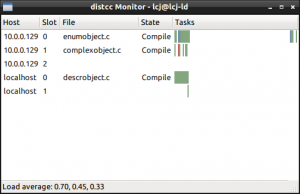
下图是distcc提供的监控工具,用于查看编译执行的情况:

使用ccache加快编译速度

ccache是一个编译器缓存,可以将编译的结果缓存起来。这样尽管第一次编译会花费长一点的时间,不过之后再次编译将变得非常非常快。


1、安装


主流的linux发行版应该都有这个包,对于Debian系列的可以执行以下命令安装:


sudo apt-get install ccache

2、使用


安装之后基本不用进行什么配置就可以直接使用了。

例如之前要编译一个hello.c文件要执行命令:


gcc hello.c -o hello

现在是:


ccache gcc hello.c -o hello

ccache默认是将结果缓存保存到 $HOME/.ccache 目录下。如果想要修改这个目录,可以修改 CCACHE_DIR 环境变量。例如:


export CCACHE_DIR=/ramdisk/ccache

如果觉得每次都在命令前加上ccache比较麻烦的话,有一个一劳永逸的办法。执行如下命令:


cp ccache /usr/local/bin/
ln -s ccache /usr/local/bin/gcc
ln -s ccache /usr/local/bin/g++
ln -s ccache /usr/local/bin/cc
ln -s ccache /usr/local/bin/c++

不过这样的话每次都是使用的ccache,不太灵活。这个就要自己取舍了。


3、实例


接下来通过一个例子来看看使用ccache和不使用的差别。

作为一个Python程序员,我们就来编译一个Python试试。


$ tar xf Python-2.7.3.tar.gz
$ cd Python-2.7.3
$ ./configure
$ time make
make 96.49s user 5.10s system 93% cpu 1:48.77 total

首次编译花了1分48秒。


$ time make
make 0.12s user 0.03s system 88% cpu 0.172 total
$ make clean
$ time make
make 96.46s user 4.98s system 95% cpu 1:46.43 total

清除结果之后再次编译,还是花了1分46秒。


再来看看使用ccache后的结果:


$ tar xf Python-2.7.3.tar.gz
$ cd Python-2.7.3
$ ./configure
$ time make
make 99.42s user 5.84s system 93% cpu 1:52.95 total

$ time make
make 0.16s user 0.00s system 89% cpu 0.178 total
$ make clean
$ time make
make 3.36s user 1.41s system 52% cpu 9.093 total

首次编译花了1分52秒,之后都是只花了几秒。


查看ccache的统计信息:


$ ccache -s
cache directory /home/longchang/.ccache
cache hit (direct) 250
cache hit (preprocessed) 4
cache miss 349
called for link 132
alled for preprocessing 84
compile failed 29
preprocessor error 28
bad compiler arguments 5
unsupported source language 6
autoconf compile/link 224
no input file 24
files in cache 710
cache size 30.3 Mbytes
max cache size 1.0 Gbytes

清除掉缓存后再次编译:


$ ccache -c
Cleaned cache

$ make clean
$ time make
make 99.36s user 5.94s system 92% cpu 1:53.47 total

$ make clean
$ time make
make 3.48s user 1.42s system 54% cpu 9.049 total

ccache手册: http://ccache.samba.org/manual.html

python wsgi教程5——POST请求

当请求方法为POST时,请求字符串会放在HTTP的body中。可以使用环境变量中的wsgi.input进行读取。同时CONTENT_LENGTH变量记录了内容的长度。

下面是一个简单的例子:

1
2
3
4
5
6
7
8
9
10
11
12
13
14
15
16
17
18
19
20
21
22
23
24
25
26
27
28
29
30
31
32
33
34
35
36
37
38
39
40
41
42
43
44
45
46
47
48
49
50
51
52
53
54
55
56
57
58
59
60
61
62
63
#!/usr/bin/env python

from wsgiref.simple_server import make_server
from cgi import parse_qs, escape

html = """
<html>
<body>
<form method="post" action="">
<p>
Age: <input type="text" name="age">
</p>
<p>
Hobbies:
<input name="hobbies" type="checkbox" value="software"> Software
<input name="hobbies" type="checkbox" value="tunning"> Auto Tunning
</p>
<p>
<input type="submit" value="Submit">
</p>
</form>
<p>
Age: %s<br>
Hobbies: %s
</p>
</body>
</html>
"""

def application(environ, start_response):

# the environment variable CONTENT_LENGTH may be empty or missing
try:
request_body_size = int(environ.get('CONTENT_LENGTH', 0))
except (ValueError):
request_body_size = 0

# When the method is POST the query string will be sent
# in the HTTP request body which is passed by the WSGI server
# in the file like wsgi.input environment variable.
request_body = environ['wsgi.input'].read(request_body_size)
d = parse_qs(request_body)

age = d.get('age', [''])[0] # Returns the first age value.
hobbies = d.get('hobbies', []) # Returns a list of hobbies.

# Always escape user input to avoid script injection
age = escape(age)
hobbies = [escape(hobby) for hobby in hobbies]

response_body = html % (age or 'Empty',
', '.join(hobbies or ['No Hobbies']))

status = '200 OK'

response_headers = [('Content-Type', 'text/html'),
('Content-Length', str(len(response_body)))]
start_response(status, response_headers)

return [response_body]

httpd = make_server('localhost', 8051, application)
httpd.serve_forever()

python wsgi教程4——GET请求

执行之前的程序,然后在浏览器中打开 http://localhost:8051/?a=10&b=w&b=r 这样的url。

环境变量字典中保存了请求信息REQUEST_METHOD和QUERY_STRING。问号之后的内容即为此次请求字符串的值。可以写一个函数对它进行解析,或者直接使用CGI模块的parse_qs函数,它返回一个字典,其值为一个列表。

下面是一个简单的例子:

1
2
3
4
5
6
7
8
9
10
11
12
13
14
15
16
17
18
19
20
21
22
23
24
25
26
27
28
29
30
31
32
33
34
35
36
37
38
39
40
41
42
43
44
45
46
47
48
49
50
51
52
53
54
55
56
57
58
#!/usr/bin/env python

from wsgiref.simple_server import make_server
from cgi import parse_qs, escape

html = """
<html>
<body>
<form method="get" action="">
<p>
Age: <input type="text" name="age">
</p>
<p>
Hobbies:
<input name="hobbies" type="checkbox" value="software"> Software
<input name="hobbies" type="checkbox" value="tunning"> Auto Tunning
</p>
<p>
<input type="submit" value="Submit">
</p>
</form>
<p>
Age: %s<br>
Hobbies: %s
</p>
</body>
</html>"""

def application(environ, start_response):

# Returns a dictionary containing lists as values.
d = parse_qs(environ['QUERY_STRING'])

# In this idiom you must issue a list containing a default value.
age = d.get('age', [''])[0] # Returns the first age value.
hobbies = d.get('hobbies', []) # Returns a list of hobbies.

# Always escape user input to avoid script injection
age = escape(age)
hobbies = [escape(hobby) for hobby in hobbies]

response_body = html % (age or 'Empty',
', '.join(hobbies or ['No Hobbies']))

status = '200 OK'

# Now content type is text/html
response_headers = [('Content-Type', 'text/html'),
('Content-Length', str(len(response_body)))]
start_response(status, response_headers)

return [response_body]

httpd = make_server('localhost', 8051, application)
# Now it is serve_forever() in instead of handle_request().
# In Windows you can kill it in the Task Manager (python.exe).
# In Linux a Ctrl-C will do it.
httpd.serve_forever()