[翻译]Ruby GTK教程7——自定义控件

自定义控件

大多数套件通常只提供了最常用的控件,如按钮、文本控件、滑动条等。没有套件可以提供所有可能的控件。程序员必须自己创建这些。这是通过套件提供的绘制工具完成。这有两种可能。程序员可以修改或增强已存在的控件,或者从头开始创建一个自定义控件。


Burning控件


这个例子我们从头开始创建一个控件。这个控件可以在各种媒体烧定应用中看到,如Nero Burning ROM。


custom.rb


#!/usr/bin/ruby

# ZetCode Ruby GTK tutorial
#
# This example creates a burning
# custom widget
#
# author: jan bodnar
# website: zetcode.com
# last edited: June 2009


require ‘gtk2’

class Burning < Gtk::DrawingArea

def initialize(parent)
@parent = parent

super()

@num = [ “75”, “150”, “225”, “300”,
“375”, “450”, “525”, “600”, “675” ]

set_size_request 1, 30
signal_connect “expose-event” do
expose
end
end


def expose

cr = window.create_cairo_context
draw_widget cr

end

def draw_widget cr

cr.set_line_width 0.8

cr.select_font_face(“Courier”,
Cairo::FONT_SLANT_NORMAL, Cairo::FONT_WEIGHT_NORMAL)
cr.set_font_size 11

width = allocation.width

@cur_width = @parent.get_cur_value

step = (width / 10.0).round

till = (width / 750.0) @cur_width
full = (width / 750.0)
700

if @cur_width >= 700

cr.set_source_rgb(1.0, 1.0, 0.72)
cr.rectangle(0, 0, full, 30)
cr.clip
cr.paint
cr.reset_clip

cr.set_source_rgb(1.0, 0.68, 0.68)
cr.rectangle(full, 0, till-full, 30)
cr.clip
cr.paint
cr.reset_clip

else
cr.set_source_rgb 1.0, 1.0, 0.72
cr.rectangle 0, 0, till, 30
cr.clip
cr.paint
cr.reset_clip
end


cr.set_source_rgb(0.35, 0.31, 0.24)

for i in (1..@num.length)
cr.move_to istep, 0
cr.line_to i
step, 5
cr.stroke

te = cr.text_extents @num[i-1]
cr.move_to istep-te.width/2, 15
cr.text_path @num[i-1]
cr.stroke
end
end
end


class RubyApp < Gtk::Window
def initialize
super

set_title “Burning”
signal_connect “destroy” do
Gtk.main_quit
end

set_size_request 350, 200
set_window_position Gtk::Window::POS_CENTER

@cur_value = 0

vbox = Gtk::VBox.new false, 2

scale = Gtk::HScale.new
scale.set_range 0, 750
scale.set_digits 0
scale.set_size_request 160, 35
scale.set_value @cur_value

scale.signal_connect “value-changed” do |w|
on_changed(w)
end

fix = Gtk::Fixed.new
fix.put scale, 50, 50

vbox.pack_start fix

@burning = Burning.new(self)
vbox.pack_start @burning, false, false, 0

add vbox
show_all
end

def on_changed widget

@cur_value = widget.value
@burning.queue_draw
end

def get_cur_value
return @cur_value
end
end

Gtk.init
window = RubyApp.new
Gtk.main

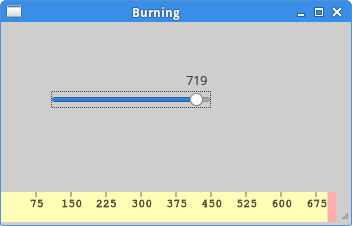
我们将DrawingArea放在窗口的底部,并且手动绘制控件的条目。所有的重要代码放在draw_widget里,通过Burning类的expose方法调用。这个控件生动的显示了媒介的容量和剩余空间。这个控件通过刻度控件来控制。我们自定义控件的最小值为0,最大值为750。如果达到700,我们开始绘制红色。这通常表明超标了。


@num = [ “75”, “150”, “225”, “300”,
“375”, “450”, “525”, “600”, “675” ]

这些数字显示在控件上。他们显示了媒介的容量。


@cur_width = @parent.get_cur_value

通过父控件我们获得刻度控件的值。


till = (width / 750.0)  @cur_width
full = (width / 750.0) 700

我们使用width变量进行刻度值和自定义控件尺寸的转换。注意我们使用了浮点数,得到较大精度的绘制。till参数决定了绘制的总大小,它的值来自刻度控件。它是整个区域的比例。full参数决定了从什么位置开始绘制红色。


cr.set_source_rgb(1.0, 1.0, 0.72)
cr.rectangle(0, 0, full, 30)
cr.clip
cr.paint
cr.reset_clip

绘制黄色矩形直到full点。


te = cr.text_extents @num[i-1]
cr.move_to i
step-te.width/2, 15
cr.text_path @num[i-1]
cr.stroke

这些代码绘制了burning控件的数字。我们计算了文本恰当的位置。


def on_changed widget

@cur_value = widget.value
@burning.queue_draw
end

我们获取刻度控件的值保存在cur_value变量中,稍后使用。重绘burning控件。


image

图片:Burning widget


在这一章中,我们创建了一个自定义控件。


原文地址: http://zetcode.com/gui/rubygtk/customwidget/

翻译:龙昌 admin@longchangjin.cn

[翻译]Ruby GTK教程6——Cairo

使用Cairo绘制

这部分的Ruby GTK教程,我们将使用Cairo库进行一些绘制。


Cairo是一个用于创建2D矢量图像的库。我们可以用它来绘制自己的控件、图表或者各种效果或动画。


颜色


在第一个会例子,我们将介绍颜色。颜色是一个代表了红、绿和蓝(RGB)强度值的对象。Cairo的RGB有效值范围为0到1。


#!/usr/bin/ruby

# ZetCode Ruby GTK tutorial
#
# This program shows how to work
# with colors in Cairo
#
# author: jan bodnar
# website: www.zetcode.com
# last modified: June 2009

require ‘gtk2’


class RubyApp < Gtk::Window

def initialize
super

set_title “Colors”
signal_connect “destroy” do
Gtk.main_quit
end

init_ui

set_default_size 360, 100
set_window_position Gtk::Window::POS_CENTER

show_all
end

def init_ui

@darea = Gtk::DrawingArea.new

@darea.signal_connect “expose-event” do
on_expose
end

add(@darea)

end

def on_expose

cr = @darea.window.create_cairo_context
draw_colors cr

end

def draw_colors cr

cr.set_source_rgb 0.2, 0.23, 0.9
cr.rectangle 10, 15, 90, 60
cr.fill

cr.set_source_rgb 0.9, 0.1, 0.1
cr.rectangle 130, 15, 90, 60
cr.fill

cr.set_source_rgb 0.4, 0.9, 0.4
cr.rectangle 250, 15, 90, 60
cr.fill
end
end

Gtk.init
window = RubyApp.new
Gtk.main

这个例子中我们绘制了三个矩形并且用三种不同的颜色填充。


@darea = Gtk::DrawingArea.new

我们将在DrawingArea控件是进行绘制操作。


@darea.signal_connect “expose-event” do
on_expose
end

当窗口需要重绘时expose-event事件将触发。对这个事件的响应中我们调用了on_expose方法。


cr = @darea.window.create_cairo_context

从GdkWindow创建cairo上下文对象。这个上下文是我们将要进行所有绘制的对象。


draw_colors cr

实际的绘制委托给draw_colors方法。


cr.set_source_rgb 0.2, 0.23, 0.9

set_source_rgb方法是设置cairo上下文的颜色。这个方法的三个参数是颜色的强度值。


cr.rectangle 10, 15, 90, 60

绘制一个矩形。前两个参数是矩形左上角的x、y坐标。后两个参数是矩形的宽和高。


cr.fill

使用当前的颜色填充矩形。


image1

图片:颜色


基本形状


下一个例子在窗口上绘制一些基本形状。


#!/usr/bin/ruby

# ZetCode Ruby GTK tutorial
#
# This code example draws basic shapes
# with the Cairo library
#
# author: jan bodnar
# website: www.zetcode.com
# last modified: June 2009

require ‘gtk2’


class RubyApp < Gtk::Window

def initialize
super

set_title “Basic shapes”
signal_connect “destroy” do
Gtk.main_quit
end

init_ui

set_default_size 390, 240
set_window_position Gtk::Window::POS_CENTER

show_all
end

def init_ui

@darea = Gtk::DrawingArea.new

@darea.signal_connect “expose-event” do
on_expose
end

add(@darea)
end

def on_expose

cr = @darea.window.create_cairo_context
draw_shapes cr
end

def draw_shapes cr

cr.set_source_rgb 0.6, 0.6, 0.6

cr.rectangle 20, 20, 120, 80
cr.rectangle 180, 20, 80, 80
cr.fill

cr.arc 330, 60, 40, 0, 2Math::PI
cr.fill

cr.arc 90, 160, 40, Math::PI/4, Math::PI
cr.fill

cr.translate 220, 180
cr.scale 1, 0.7
cr.arc 0, 0, 50, 0, 2
Math::PI
cr.fill
end
end

Gtk.init
window = RubyApp.new
Gtk.main

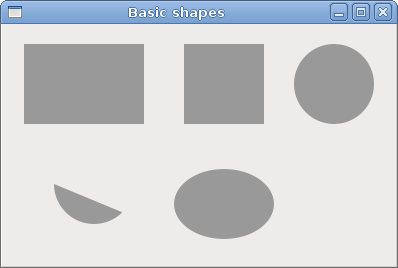
这个例子我们将创建一个矩形、方形、圆形、弧形和椭圆形。我们将轮廓绘为蓝色,内部为白色。


cr.rectangle 20, 20, 120, 80
cr.rectangle 180, 20, 80, 80
cr.fill

这几行绘制了一个矩形和一个方形。


cr.arc 330, 60, 40, 0, 2Math::PI
cr.fill

arc方法绘制一个全圆。


cr.translate 220, 180
cr.scale 1, 0.7
cr.arc 0, 0, 50, 0, 2
Math::PI
cr.fill

translate方法将对象移动到指定的点。如果我们想要绘制椭圆,我们需要进行一些缩放。这里scale方法将y轴收缩。


image2

图片:基本形状


透明矩形


透明度是透过实体的可见度。最简单的理解可以把它想象成玻璃或者水。光线可以透过玻璃,这样我们就可以看到玻璃后的物体。


在计算机图像中,我们可以使用透明混合实现透明度。透明混合处理图片和背景的组合,显示部透明。作品处理使用了阿尔法通道。


#!/usr/bin/ruby

# ZetCode Ruby GTK tutorial
#
# This program shows transparent
# rectangles using Cairo
#
# author: jan bodnar
# website: www.zetcode.com
# last modified: June 2009

require ‘gtk2’


class RubyApp < Gtk::Window

def initialize
super

set_title “Transparent rectangles”
signal_connect “destroy” do
Gtk.main_quit
end

init_ui

set_default_size 590, 90
set_window_position Gtk::Window::POS_CENTER

show_all
end

def init_ui

@darea = Gtk::DrawingArea.new

@darea.signal_connect “expose-event” do
on_expose
end

add(@darea)

end

def on_expose

cr = @darea.window.create_cairo_context

for i in (1..10)
cr.set_source_rgba 0, 0, 1, i0.1
cr.rectangle 50
i, 20, 40, 40
cr.fill
end
end
end

Gtk.init
window = RubyApp.new
Gtk.main

这个例子我们使用不同等级透明度绘制了10个矩形。


cr.set_source_rgba 0, 0, 1, i0.1

set_source_rgba方法是最后一个参数是alpha透明度。


image3

图片:透明矩形


甜甜圈


接下来的例子我们通过旋转一堆椭圆来创建一个复杂的形状。


#!/usr/bin/ruby

# ZetCode Ruby GTK tutorial
#
# This program creates a donut
# with Cairo library
#
# author: jan bodnar
# website: www.zetcode.com
# last modified: June 2009

require ‘gtk2’


class RubyApp < Gtk::Window

def initialize
super

set_title “Donut”
signal_connect “destroy” do
Gtk.main_quit
end

init_ui

set_default_size 350, 250
set_window_position Gtk::Window::POS_CENTER

show_all
end

def init_ui

@darea = Gtk::DrawingArea.new

@darea.signal_connect “expose-event” do
on_expose
end

add(@darea)

end

def on_expose

cr = @darea.window.create_cairo_context
cr.set_line_width 0.5

w = allocation.width
h = allocation.height

cr.translate w/2, h/2
cr.arc 0, 0, 120, 0, 2
Math::PI
cr.stroke

for i in (1..36)
cr.save
cr.rotate iMath::PI/36
cr.scale 0.3, 1
cr.arc 0, 0, 120, 0, 2
Math::PI
cr.restore
cr.stroke
end
end
end

Gtk.init
window = RubyApp.new
Gtk.main

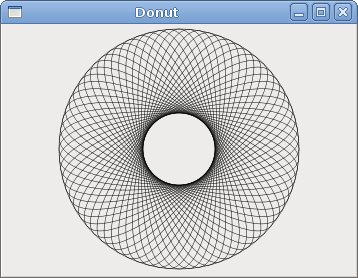
这个例子我们创建了一个甜甜圈。它的形状与饼干相似,因此取名为甜甜圈(donut)。


cr.translate w/2, h/2
cr.arc 0, 0, 120, 0, 2Math::PI
cr.stroke

在开始只是一个椭圆。


for i in (1..36)
cr.save
cr.rotate i
Math::PI/36
cr.scale 0.3, 1
cr.arc 0, 0, 120, 0, 2*Math::PI
cr.restore
cr.stroke
end

经过一些旋转后变成了甜甜圈。


image4

图片:Donut


绘制文本


下一个例子我们在窗口上绘制一些文本。


#!/usr/bin/ruby

# ZetCode Ruby GTK tutorial
#
# This program draws text
# using Cairo
#
# author: jan bodnar
# website: www.zetcode.com
# last modified: June 2009

require ‘gtk2’


class RubyApp < Gtk::Window

def initialize
super

set_title “Soulmate”
signal_connect “destroy” do
Gtk.main_quit
end

init_ui

set_default_size 370, 240
set_window_position Gtk::Window::POS_CENTER

show_all
end

def init_ui

@darea = Gtk::DrawingArea.new

@darea.signal_connect “expose-event” do
on_expose
end

add(@darea)

end

def on_expose

cr = @darea.window.create_cairo_context

cr.set_source_rgb 0.1, 0.1, 0.1

cr.select_font_face “Purisa”, Cairo::FONT_SLANT_NORMAL,
Cairo::FONT_WEIGHT_NORMAL
cr.set_font_size 13

cr.move_to 20, 30
cr.show_text “Most relationships seem so transitory”
cr.move_to 20, 60
cr.show_text “They’re all good but not the permanent one”
cr.move_to 20, 120
cr.show_text “Who doesn’t long for someone to hold”
cr.move_to 20, 150
cr.show_text “Who knows how to love without being told”
cr.move_to 20, 180
cr.show_text “Somebody tell me why I’m on my own”
cr.move_to 20, 210
cr.show_text “If there’s a soulmate for everyone”
end
end

Gtk.init
window = RubyApp.new
Gtk.main

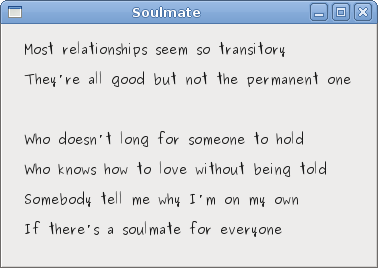
我们显示了Natasha Bedingfields Soulmate歌的部分歌词。


cr.select_font_face “Purisa”, Cairo::FONT_SLANT_NORMAL,
Cairo::FONT_WEIGHT_NORMAL

这里我们指定我们使用的字体。


cr.set_font_size 13

我们指定字体的大小。


cr.move_to 20, 30

移动到开始绘制文本的坐标。


cr.show_text “Most relationships seem so transitory”

show_text方法在窗口上绘制文本。


image5

图片: Soulmate


这章的Ruby GTK教程我们使用Cairo库进行绘制。


原文地址: http://zetcode.com/gui/rubygtk/cairo/

翻译:龙昌 admin@longchangjin.cn

[翻译]Ruby GTK教程5——对话框

对话框

在这部分的Ruby GTK教程我们将介绍对话框。


对话框是现代GUI应用程序不可缺的一部分。对话是两个或者更多人之间交谈。在计算机程序中对话是一个用于与应用程序交互的窗口。对话框用于输入数据、修改数据、修改设置等。对话框在用户与计算机程序之间的交流具有重要意义。


消息盒子


消息对话框是应用程序便于给用户提供消息的对话框。消息由文本和图片数据组成。


#!/usr/bin/ruby

# ZetCode Ruby GTK tutorial
#
# This example shows message
# dialogs
#
# author: jan bodnar
# website: www.zetcode.com
# last modified: June 2009

require ‘gtk2’


class RubyApp < Gtk::Window

def initialize
super

set_title “Messages”
signal_connect “destroy” do
Gtk.main_quit
end

init_ui

set_default_size 250, 100
set_window_position Gtk::Window::POS_CENTER

show_all
end

def init_ui

table = Gtk::Table.new 2, 2, true

info = Gtk::Button.new “Information”
warn = Gtk::Button.new “Warning”
ques = Gtk::Button.new “Question”
erro = Gtk::Button.new “Error”

info.signal_connect “clicked” do
on_info
end

warn.signal_connect “clicked” do
on_warn
end

ques.signal_connect “clicked” do
on_ques
end

erro.signal_connect “clicked” do
on_erro
end

table.attach info, 0, 1, 0, 1
table.attach warn, 1, 2, 0, 1
table.attach ques, 0, 1, 1, 2
table.attach erro, 1, 2, 1, 2

add table

end

def on_info
md = Gtk::MessageDialog.new(self,
Gtk::Dialog::DESTROY_WITH_PARENT, Gtk::MessageDialog::INFO,
Gtk::MessageDialog::BUTTONS_CLOSE, “Download completed”)
md.run
md.destroy
end


def on_erro
md = Gtk::MessageDialog.new(self, Gtk::Dialog::MODAL |
Gtk::Dialog::DESTROY_WITH_PARENT, Gtk::MessageDialog::ERROR,
Gtk::MessageDialog::BUTTONS_CLOSE, “Error loading file”)
md.run
md.destroy
end


def on_ques
md = Gtk::MessageDialog.new(self,
Gtk::Dialog::DESTROY_WITH_PARENT, Gtk::MessageDialog::QUESTION,
Gtk::MessageDialog::BUTTONS_CLOSE, “Are you sure to quit?”)
md.run
md.destroy
end

def on_warn
md = Gtk::MessageDialog.new(self,
Gtk::Dialog::DESTROY_WITH_PARENT, Gtk::MessageDialog::WARNING,
Gtk::MessageDialog::BUTTONS_CLOSE, “Unallowed operation”)
md.run
md.destroy
end
end

Gtk.init
window = RubyApp.new
Gtk.main

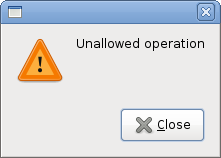
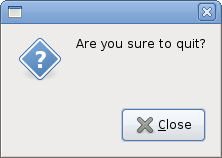
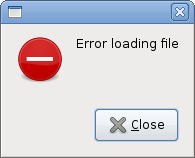
我们的例子中显示了四种消息对话框。信息、警告、询问和错误消息对话框。


info = Gtk::Button.new “Information”
warn = Gtk::Button.new “Warning”
ques = Gtk::Button.new “Question”
erro = Gtk::Button.new “Error”

创建四个按钮。每个按钮将显示不同种类的消息对话框。


def on_info
md = Gtk::MessageDialog.new(self,
Gtk::Dialog::DESTROY_WITH_PARENT, Gtk::MessageDialog::INFO,
Gtk::MessageDialog::BUTTONS_CLOSE, “Download completed”)
md.run
md.destroy
end

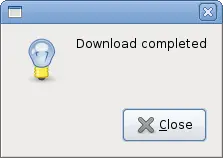
如果我们点击了info按钮,信息对话框将显示。Gtk::MessageDialog::INFO指定了对话框的类型。Gtk::MessageDialog::BUTTONS_CLOSE指定在对话框中显示的按钮。最后一个参数是要显示的消息。对话框使用run方法显示。程序员必须也要调用destroy或者hide方法。

image1 image2

image3 image4


关于对话框(AboutDialog)


关于对话框显示了应用程序的信息。关于对话框可以显示logo、应用程序名、版本号、版权、网站或者授权信息。它也可能给出作者、文档编写才、翻译者和设计师的信息。


#!/usr/bin/ruby

# ZetCode Ruby GTK tutorial
#
# This example demonstrates the
# AboutDialog dialog
#
# author: jan bodnar
# website: www.zetcode.com
# last modified: June 2009

require ‘gtk2’


class RubyApp < Gtk::Window

def initialize
super

set_title “About dialog”
signal_connect “destroy” do
Gtk.main_quit
end

init_ui

set_default_size 300, 150
set_window_position Gtk::Window::POS_CENTER

show_all
end

def init_ui

button = Gtk::Button.new “About”
button.set_size_request 80, 30

button.signal_connect “clicked” do
on_clicked
end

fix = Gtk::Fixed.new
fix.put button, 20, 20

add fix

end

def on_clicked
about = Gtk::AboutDialog.new
about.set_program_name “Battery”
about.set_version “0.1”
about.set_copyright “(c) Jan Bodnar”
about.set_comments “Battery is a simple tool for battery checking”
about.set_website “http://www.zetcode.com
about.set_logo Gdk::Pixbuf.new “battery.png”
about.run
about.destroy
end
end

Gtk.init
window = RubyApp.new
Gtk.main

代码伅使用了AboutDialog的一些特性。


about = Gtk::AboutDialog.new

创建一个AboutDialog。


about.set_program_name “Battery”
about.set_version “0.1”
about.set_copyright “(c) Jan Bodnar”

这里我们指定名称、版本号和版权信息。


about.set_logo Gdk::Pixbuf.new “battery.png”

这行创建一个logo。

image5

图片:AboutDialog


字体选择对话框


FontSelectionDialog是一个用于选择字体的对话框。它典型的应用于文本编辑或者格式化的应用程序中。


#!/usr/bin/ruby

# ZetCode Ruby GTK tutorial
#
# This example works with the
# FontSelectionDialog
#
# author: jan bodnar
# website: www.zetcode.com
# last modified: June 2009

require ‘gtk2’


class RubyApp < Gtk::Window

def initialize
super

set_title “FontSelectionDialog”
signal_connect “destroy” do
Gtk.main_quit
end

init_ui

set_default_size 300, 150
set_window_position Gtk::Window::POS_CENTER

show_all
end

def init_ui

set_border_width 10
@label = Gtk::Label.new “The only victory over love is flight.”
button = Gtk::Button.new “Select font”

button.signal_connect “clicked” do
on_clicked
end

fix = Gtk::Fixed.new
fix.put button, 100, 30
fix.put @label, 30, 90
add fix

end

def on_clicked
fdia = Gtk::FontSelectionDialog.new “Select font name”
response = fdia.run

if response == Gtk::Dialog::RESPONSE_OK
font_desc = Pango::FontDescription.new fdia.font_name
if font_desc
@label.modify_font font_desc
end
end
fdia.destroy
end
end

Gtk.init
window = RubyApp.new
Gtk.main

这个代码例子我们创建了一个按钮和一个标签。点击按钮之后显示字体选择对话框。


fdia = Gtk::FontSelectionDialog.new “Select font name”

创建FontSelectionDialog


if response == Gtk::Dialog::RESPONSE_OK
font_desc = Pango::FontDescription.new fdia.font_name
if font_desc
@label.modify_font font_desc
end
end

如果点击确定按钮,标签的字体会变为我们在对话框中选中的。

image6

图片:FontSelectionDialog


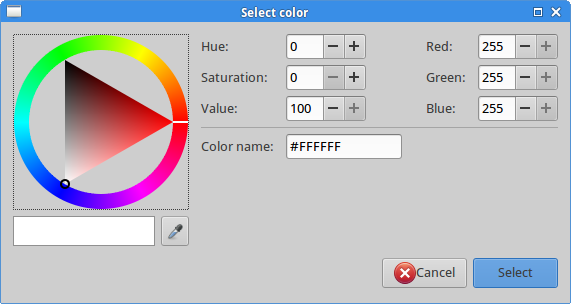
颜色选择对话框


ColorSelectionDialog是用于选择颜色的对话框。


#!/usr/bin/ruby

# ZetCode Ruby GTK tutorial
#
# This example works with the
# ColorSelectionDialog
#
# author: jan bodnar
# website: www.zetcode.com
# last modified: June 2009

require ‘gtk2’


class RubyApp < Gtk::Window

def initialize
super

set_title “ColorSelectionDialog”
signal_connect “destroy” do
Gtk.main_quit
end

init_ui

set_default_size 350, 150
set_window_position Gtk::Window::POS_CENTER

show_all
end

def init_ui

set_border_width 10
@label = Gtk::Label.new “The only victory over love is flight.”
button = Gtk::Button.new “Select color”

button.signal_connect “clicked” do
on_clicked
end

fix = Gtk::Fixed.new
fix.put button, 100, 30
fix.put @label, 30, 90
add fix
end

def on_clicked
cdia = Gtk::ColorSelectionDialog.new “Select color”
response = cdia.run

if response == Gtk::Dialog::RESPONSE_OK
colorsel = cdia.colorsel
color = colorsel.current_color
@label.modify_fg Gtk::STATE_NORMAL, color
end

cdia.destroy
end
end

Gtk.init
window = RubyApp.new
Gtk.main

这个例子与前一个例子很相似。这次我们是改变标签的颜色。


cdia = Gtk::ColorSelectionDialog.new “Select color”

创建ColorSelectionDialog。


if response == Gtk::Dialog::RESPONSE_OK
colorsel = cdia.colorsel
color = colorsel.current_color
@label.modify_fg Gtk::STATE_NORMAL, color
end

如果按下OK按钮,我们得到颜色值并修改标签的颜色。


image7

图片:ColorSelectionDialog


这部分的Ruby GTK教程我们展示了对话框。


原文地址: http://zetcode.com/gui/rubygtk/dialogs/

翻译:龙昌 admin@longchangjin.cn

[翻译]Ruby GTK教程4——菜单&工具条

菜单&工具条

这部分的Ruby GTK教程我们将使用菜单和工具条。


菜单栏是GUI应用中最常用的部分之一。它是位于各个菜单的一组命令。在命令行应用程序中我们需要记住这些所有神秘的命令,而现在我们将这些大部分的命令按照逻辑归合在一起。接受这些标准将进一步减少在学习新应用上花费的时间。


简单的菜单


我们的第一个例子将创建一个有文件菜单的菜单栏。这个菜单只有一个菜单项,选择这一项将退出应用。


#!/usr/bin/ruby

# ZetCode Ruby GTK tutorial
#
# This example shows a simple menu
#
# author: jan bodnar
# website: www.zetcode.com
# last modified: June 2009

require ‘gtk2’


class RubyApp < Gtk::Window

def initialize
super

set_title “Simple menu”
signal_connect “destroy” do
Gtk.main_quit
end

init_ui

set_default_size 250, 200
set_window_position Gtk::Window::POS_CENTER

show_all
end

def init_ui

modify_bg Gtk::STATE_NORMAL, Gdk::Color.new(6400, 6400, 6440)

mb = Gtk::MenuBar.new

filemenu = Gtk::Menu.new
filem = Gtk::MenuItem.new “File”
filem.set_submenu filemenu

exit = Gtk::MenuItem.new “Exit”
exit.signal_connect “activate” do
Gtk.main_quit
end

filemenu.append exit

mb.append filem

vbox = Gtk::VBox.new false, 2
vbox.pack_start mb, false, false, 0

add vbox
end
end

Gtk.init
window = RubyApp.new
Gtk.main

这是一个最小功能的菜单栏的例子。


mb = Gtk::MenuBar.new

创建MenuBar控件,这是菜单的容器。


filemenu = Gtk::Menu.new
filem = Gtk::MenuItem.new “File”
filem.set_submenu filemenu

创建顶级菜单项。


exit = Gtk::MenuItem.new “Exit”
exit.signal_connect “activate” do
Gtk.main_quit
end

filemenu.append exit

创建退出菜单项并添加到文件菜单项中。


mb.append filem

将顶级菜单项添加到菜单栏控件中。


vbox = Gtk::VBox.new false, 2
vbox.pack_start mb, false, false, 0

与其他套件不同,我们必须要自己处理菜单栏的布局。我们将菜单栏放入竖直盒子中。


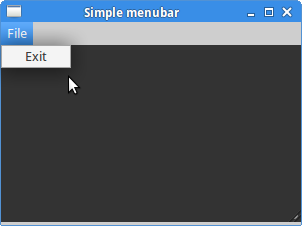
image1

图片:简单的菜单


子菜单


最后展示如何创建一个子菜单。


#!/usr/bin/ruby

# ZetCode Ruby GTK tutorial
#
# This example shows a submenu
#
# author: jan bodnar
# website: www.zetcode.com
# last modified: June 2009

require ‘gtk2’


class RubyApp < Gtk::Window

def initialize
super

set_title “Submenu”
signal_connect “destroy” do
Gtk.main_quit
end

init_ui

set_default_size 250, 200
set_window_position Gtk::Window::POS_CENTER

show_all
end

def init_ui

modify_bg Gtk::STATE_NORMAL, Gdk::Color.new(6400, 6400, 6440)

mb = Gtk::MenuBar.new

filemenu = Gtk::Menu.new
filem = Gtk::MenuItem.new “File”
filem.set_submenu filemenu

mb.append filem

imenu = Gtk::Menu.new

importm = Gtk::MenuItem.new “Import”
importm.set_submenu imenu

inews = Gtk::MenuItem.new “Import news feed…”
ibookmarks = Gtk::MenuItem.new “Import bookmarks…”
imail = Gtk::MenuItem.new “Import mail…”

imenu.append inews
imenu.append ibookmarks
imenu.append imail

filemenu.append importm

exit = Gtk::MenuItem.new “Exit”
exit.signal_connect “activate” do
Gtk.main_quit
end

filemenu.append exit

vbox = Gtk::VBox.new false, 2
vbox.pack_start mb, false, false, 0

add vbox
end
end

Gtk.init
window = RubyApp.new
Gtk.main

创建子菜单。


imenu = Gtk::Menu.new

子菜单也是Menu控件。


importm = Gtk::MenuItem.new “Import”
importm.set_submenu imenu

这是属于文件顶级菜单的菜单项的子菜单。


inews = Gtk::MenuItem.new “Import news feed…”
ibookmarks = Gtk::MenuItem.new “Import bookmarks…”
imail = Gtk::MenuItem.new “Import mail…”

imenu.append inews
imenu.append ibookmarks
imenu.append imail

子菜单有自己的菜单项。


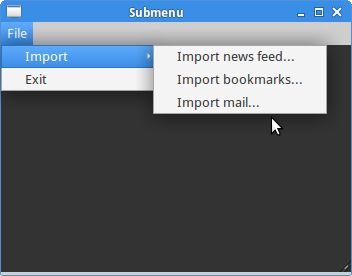
image2

图片:子菜单


图片菜单


接下来的例子我们将进一步探索菜单。我们将在菜单项上添加图片和快捷键(accelerators)。


#!/usr/bin/ruby

# ZetCode Ruby GTK tutorial
#
# This example shows a menu with
# images, accelerators and a separator
#
# author: jan bodnar
# website: www.zetcode.com
# last modified: June 2009

require ‘gtk2’


class RubyApp < Gtk::Window

def initialize
super

set_title “Image menu”
signal_connect “destroy” do
Gtk.main_quit
end

init_ui

set_default_size 250, 200
set_window_position Gtk::Window::POS_CENTER

show_all
end

def init_ui

modify_bg Gtk::STATE_NORMAL, Gdk::Color.new(6400, 6400, 6440)

mb = Gtk::MenuBar.new

filemenu = Gtk::Menu.new
filem = Gtk::MenuItem.new “File”
filem.set_submenu filemenu

agr = Gtk::AccelGroup.new
add_accel_group agr

newi = Gtk::ImageMenuItem.new Gtk::Stock::NEW, agr
key, mod = Gtk::Accelerator.parse “N”
newi.add_accelerator(“activate”, agr, key,
mod, Gtk::ACCEL_VISIBLE)
filemenu.append newi

openm = Gtk::ImageMenuItem.new Gtk::Stock::OPEN, agr
key, mod = Gtk::Accelerator.parse “O”
openm.add_accelerator(“activate”, agr, key,
mod, Gtk::ACCEL_VISIBLE)
filemenu.append openm

sep = Gtk::SeparatorMenuItem.new
filemenu.append sep

exit = Gtk::ImageMenuItem.new Gtk::Stock::QUIT, agr
key, mod = Gtk::Accelerator.parse “Q”
exit.add_accelerator(“activate”, agr, key,
mod, Gtk::ACCEL_VISIBLE)

exit.signal_connect “activate” do
Gtk.main_quit
end
filemenu.append exit

mb.append filem

vbox = Gtk::VBox.new false, 2
vbox.pack_start mb, false, false, 0

add vbox
end
end

Gtk.init
window = RubyApp.new
Gtk.main

这个例子显示了一个有子菜单的顶级菜单,每个菜单项都有一个图像和一个快捷键。退出菜单的快捷键是激活的。


agr = Gtk::AccelGroup.new
add_accel_group agr

为了使用快捷键,我们创建了一个全局的AccelGroup对象。它稍后被用到。


newi = Gtk::ImageMenuItem.new Gtk::Stock::NEW, agr
key, mod = Gtk::Accelerator.parse “N”
newi.add_accelerator(“activate”, agr, key,
mod, Gtk::ACCEL_VISIBLE)
filemenu.append newi

创建图片菜单项。图片来自图片库中。我们也创建了Ctrl+N快捷键。


sep = Gtk::SeparatorMenuItem.new
filemenu.append sep

这行创建一条分隔线。它用于将菜单项按照逻辑分组。


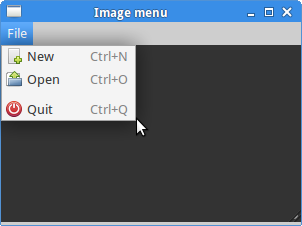
image3

图片:图片菜单


菜单将我们使用的命令进行分组。工具条提供了一个快速访问最常用命令的方式。


简单的工具条


接下来我们创建一个简单的工具条。


#!/usr/bin/ruby

# ZetCode Ruby GTK tutorial
#
# This example shows a toolbar
# widget
#
# author: jan bodnar
# website: www.zetcode.com
# last modified: June 2009

require ‘gtk2’


class RubyApp < Gtk::Window

def initialize
super

set_title “Toolbar”
signal_connect “destroy” do
Gtk.main_quit
end

init_ui

set_default_size 250, 200
set_window_position Gtk::Window::POS_CENTER

show_all
end

def init_ui

toolbar = Gtk::Toolbar.new
toolbar.set_toolbar_style Gtk::Toolbar::Style::ICONS

newtb = Gtk::ToolButton.new Gtk::Stock::NEW
opentb = Gtk::ToolButton.new Gtk::Stock::OPEN
savetb = Gtk::ToolButton.new Gtk::Stock::SAVE
sep = Gtk::SeparatorToolItem.new
quittb = Gtk::ToolButton.new Gtk::Stock::QUIT

toolbar.insert 0, newtb
toolbar.insert 1, opentb
toolbar.insert 2, savetb
toolbar.insert 3, sep
toolbar.insert 4, quittb

quittb.signal_connect “clicked” do
Gtk.main_quit
end

vbox = Gtk::VBox.new false, 2
vbox.pack_start toolbar, false, false, 0

add(vbox)
end
end

Gtk.init
window = RubyApp.new
Gtk.main

这个例子显示了有四个工具按钮的工具栏。


toolbar = Gtk::Toolbar.new

创建Toolbar控件。


toolbar.set_toolbar_style Gtk::Toolbar::Style::ICONS

工具栏上我们只显示图标,没有文字。


newtb = Gtk::ToolButton.new Gtk::Stock::NEW

创建了一个包含图片的ToolButton控件。图片来自内建的图片库。


sep = Gtk::SeparatorToolItem.new

这是一个分隔符,用于将按钮按照逻辑分组。


toolbar.insert 0, newtb
toolbar.insert 1, opentb


将按钮添加到工具栏。


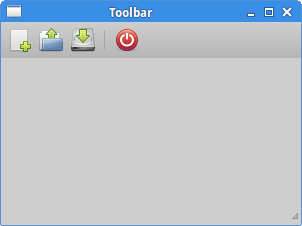
image4

图片:工具栏


撤消重做


接下来的例子展示了如何停用工具栏上的按钮。这是GUI编程中的常见练习。例如对于保存按钮,在大多数编辑器中如果我们将文档的修改保存到磁盘中了,那么保存按钮会被停用。这是应用程序给用户的提示,所有修改都已保存。


#!/usr/bin/ruby

# ZetCode Ruby GTK tutorial
#
# This example shows how to
# activate/deactivate a ToolButton
#
# author: jan bodnar
# website: www.zetcode.com
# last modified: June 2009

require ‘gtk2’


class RubyApp < Gtk::Window


def initialize
super

set_title “Undo redo”
signal_connect “destroy” do
Gtk.main_quit
end

@count = 2

init_ui

set_default_size 250, 200
set_window_position Gtk::Window::POS_CENTER

show_all
end

def init_ui

toolbar = Gtk::Toolbar.new
toolbar.set_toolbar_style Gtk::Toolbar::Style::ICONS

@undo = Gtk::ToolButton.new Gtk::Stock::UNDO
@redo = Gtk::ToolButton.new Gtk::Stock::REDO
sep = Gtk::SeparatorToolItem.new
quit = Gtk::ToolButton.new Gtk::Stock::QUIT

toolbar.insert 0, @undo
toolbar.insert 1, @redo
toolbar.insert 2, sep
toolbar.insert 3, quit

@undo.signal_connect “clicked” do
on_undo
end

@redo.signal_connect “clicked” do
on_redo
end

quit.signal_connect “clicked” do
Gtk.main_quit
end

vbox = Gtk::VBox.new false, 2
vbox.pack_start toolbar, false, false, 0

self.add vbox

end

def on_undo

@count = @count - 1

if @count <= 0
@undo.set_sensitive false
@redo.set_sensitive true
end
end


def on_redo
@count = @count + 1

if @count >= 5
@redo.set_sensitive false
@undo.set_sensitive true
end
end
end

Gtk.init
window = RubyApp.new
Gtk.main

我们例子从GTK资源中创建了撤消和重做按钮。每个按钮点击多次后会被禁用,变为灰色。


@count = 2

@count变量用于描述按钮是禁用还是激活。


@undo = Gtk::ToolButton.new Gtk::Stock::UNDO
@redo = Gtk::ToolButton.new Gtk::Stock::REDO

创建两个工具按钮,图片来自资源库。


@undo.signal_connect “clicked” do
on_undo
end

点击undo按钮触发on_undo方法。


if @count <= 0
@undo.set_sensitive false
@redo.set_sensitive true
end

我们使用set_sensitive方法激活或者禁用控件。


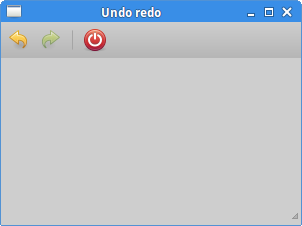
image5

图片:撤消重做


这章的Ruby GTK教程我们展示了如何使用菜单和工具栏。


原文地址: http://zetcode.com/gui/rubygtk/menustoolbars/

翻译:龙昌 admin@longchangjin.cn

[翻译]Ruby GTK教程3——控件

控件

在这部分的Ruby GTK编程教程中我们将提到一些控件。


控件是GUI应用程序的基本构成。这些年来一些控件成为了所有平台所有套件的标准。如按钮、复选框或者滚动条。GTK套件的理念是保持控件的数量为最小的数量级,一些特殊的控件需要创建为自定义GTK控件。


复选按钮(CheckButton)


CheckButton是一个有两种状态的控件,开和关。开状态表示选中。它用于表示一些布尔属性。


#!/usr/bin/ruby

# ZetCode Ruby GTK tutorial
#
# This program toggles the title of the
# window with the CheckButton widget
#
# author: jan bodnar
# website: www.zetcode.com
# last modified: April 2009

require ‘gtk2’

class RubyApp < Gtk::Window
def initialize
super

set_title “CheckButton”
signal_connect “destroy” do
Gtk.main_quit
end

init_ui

set_default_size 250, 200
set_window_position Gtk::Window::POS_CENTER
show_all
end


def init_ui

fixed = Gtk::Fixed.new
add fixed

cb = Gtk::CheckButton.new “Show title”
cb.set_active true
cb.set_can_focus false
cb.signal_connect(“clicked”) do |w|
on_clicked(w)
end

fixed.put cb, 50, 50

end

def on_clicked sender

if sender.active?
self.set_title “Check Button”
else
self.set_title “”
end
end
end

Gtk.init
window = RubyApp.new
Gtk.main

我们将根据复选按钮的状态在窗口的标题栏显示一个标题。


cb = Gtk::CheckButton.new “Show title”

创建CheckButton控件。


cb.set_active true

标题默认是可见的,因此我们将按钮默认选中。


if sender.active?
self.set_title “Check Button”
else
self.set_title “”
end

如果按钮选中则显示标题。


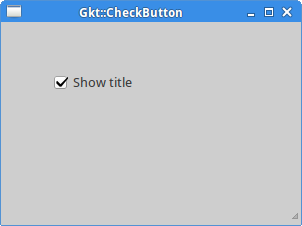
image1

图片:复选按钮


标签(Label)


Label控件用于显示文本。


#!/usr/bin/ruby

# ZetCode Ruby GTK tutorial
#
# This example demonstrates the Label widget
#
# author: jan bodnar
# website: www.zetcode.com
# last modified: June 2009

require ‘gtk2’

$lyrics = %{Meet you downstairs in the bar and heard
your rolled up sleeves and your skull t-shirt
You say why did you do it with him today?
and sniff me out like I was Tanqueray

cause you’re my fella, my guy
hand me your stella and fly
by the time I’m out the door
you tear men down like Roger Moore

I cheated myself
like I knew I would
I told ya, I was trouble
you know that I’m no good}


class RubyApp < Gtk::Window

def initialize
super

set_title “You know I’m no Good”
signal_connect “destroy” do
Gtk.main_quit
end

init_ui

set_default_size 250, 200
set_window_position Gtk::Window::POS_CENTER

show_all
end

def init_ui

set_border_width 10
label = Gtk::Label.new $lyrics
add label

end
end

Gtk.init
window = RubyApp.new
Gtk.main

例子在窗口上显示了一些歌词。


 $lyrics = %{Meet you downstairs in the bar and heard
your rolled up sleeves and your skull t-shirt


创建一个多行文本。


set_border_width 10

标签被一些空白空间包围着。


label = Gtk::Label.new $lyrics
add label

创建标签并添加到窗口内。


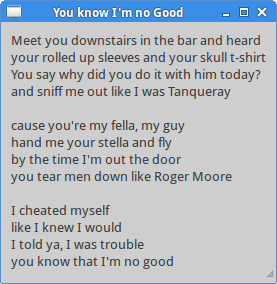
image2

图片:标签控件


输入框(Entry)


Entry是单行文本输入字段,用于文本数据的输入。


#!/usr/bin/ruby

# ZetCode Ruby GTK tutorial
#
# This example demonstrates the Entry widget
#
# author: jan bodnar
# website: www.zetcode.com
# last modified: June 2009

require ‘gtk2’


class RubyApp < Gtk::Window

def initialize
super

set_title “Entry”
signal_connect “destroy” do
Gtk.main_quit
end

init_ui

set_default_size 250, 200
set_window_position Gtk::Window::POS_CENTER

show_all
end

def init_ui

fixed = Gtk::Fixed.new

label = Gtk::Label.new “…”
fixed.put label, 60, 40

entry = Gtk::Entry.new
fixed.put entry, 60, 100

entry.signal_connect “key-release-event” do |w, e|
on_key_release(w, e, label)
end

add(fixed)
end

def on_key_release sender, event, label
label.set_text sender.text
end
end

Gtk.init
window = RubyApp.new
Gtk.main

这个例子显示了一个输入控件和一个标签。我们在输入框输入的文本会立即在标签上显示。


entry = Gtk::Entry.new

创建Entry控件。


entry.signal_connect “key-release-event” do |w, e|
on_key_release(w, e, label)
end

我们将on_key_release方法插到Entry控件的key-release-event事件中。


def on_key_release sender, event, label
label.set_text sender.text
end

从Entry控件获取文本并设置到标签中。


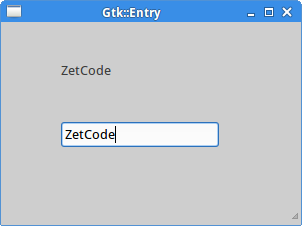
image3

图片:Entry控件


图片(Image)


Image控件用于显示图片。


#!/usr/bin/ruby

# ZetCode Ruby GTK tutorial
#
# This example demonstrates the Image widget
#
# author: jan bodnar
# website: www.zetcode.com
# last modified: June 2009

require ‘gtk2’


class RubyApp < Gtk::Window

def initialize
super

set_title “Red Rock”
signal_connect “destroy” do
Gtk.main_quit
end

init_ui

set_default_size 250, 200
set_window_position Gtk::Window::POS_CENTER

show_all
end

def init_ui

set_border_width 2

begin
image = Gtk::Image.new “redrock.png”
rescue
puts “cannot load image”
exit
end

add image
end

end

Gtk.init
window = RubyApp.new
Gtk.main

我们例子在窗口上显示了一个图片。


set_border_width 2

我们在图片周围添加一些空白边框。


begin
image = Gtk::Image.new “redrock.png”
rescue
puts “cannot load image”
exit
end

创建Image控件。IO操作容易出现错误,因此我们处理可能的异常。


add image

将控件添加到容器中。


image4

图片:Image控件


下拉框(ComboBox)


ComboBox控件允许用户从一个列表选项中进行选择。


#!/usr/bin/ruby

# ZetCode Ruby GTK tutorial
#
# This example demonstrates the ComboBox widget
#
# author: jan bodnar
# website: www.zetcode.com
# last modified: June 2009

require ‘gtk2’


class RubyApp < Gtk::Window

def initialize
super

set_title “ComboBox”
signal_connect “destroy” do
Gtk.main_quit
end

init_ui

set_default_size 250, 200
set_window_position Gtk::Window::POS_CENTER

show_all
end

def init_ui

fixed = Gtk::Fixed.new
label = Gtk::Label.new ‘-‘
fixed.put label, 50, 140

cb = Gtk::ComboBox.new
cb.signal_connect “changed” do |w, e|
on_changed(w, e, label)
end

cb.append_text ‘Ubuntu’
cb.append_text ‘Mandriva’
cb.append_text ‘Redhat’
cb.append_text ‘Gento’
cb.append_text ‘Mint’

fixed.put cb, 50, 30

add fixed

end

def on_changed sender, event, label
label.set_label sender.active_text
end
end

Gtk.init
window = RubyApp.new
Gtk.main

这个例子显示了一个下拉框和一个标签。下拉框列表有5个选项。它们是Linux发行版的名称。标签控件显示下拉列表选中的选项。


cb = Gtk::ComboBox.new

创建下拉框。


cb.append_text ‘Ubuntu’
cb.append_text ‘Mandriva’
cb.append_text ‘Redhat’
cb.append_text ‘Gento’
cb.append_text ‘Mint’

填充数据。


def on_changed sender, event, label
label.set_label sender.active_text
end

on_changed方法里,我们获取选中的文本并设置到标签中。


image5

图片:下拉框


在这章的Ruby GTK教程中我们显示了一些基本的控件。


原文地址: http://zetcode.com/gui/rubygtk/widgets/

翻译:龙昌 admin@longchangjin.cn

[翻译]Ruby GTK教程2——布局管理

布局管理

这一章我们将展示如何布置窗口或者对话框中的控件。


当我设计应用程序的用户界面时,我们决定了将要使用哪些控件以及如何在应用程序中组织这些控件。为了组织我们的控件,我们使用了一些称为布局容器的特殊不可见控件。这一章我们将提到AlignmentFixedVBoxTable


Fixed


Fixed窗口是将子控件放置在固定位置固定大小。这个容器不会执行自动布局管理。在大部分的应用程序中我们不使用这个容器。它用于一些特殊的地方,例如游戏、使用图表的特殊应用、可移动可变大小的组件(如电子表格中的图表)。以下是一些小例子。


#!/usr/bin/ruby

# ZetCode Ruby GTK tutorial
#
# In this program, we lay out widgets
# using absolute positioning
#
# author: jan bodnar
# website: www.zetcode.com
# last modified: June 2009

require ‘gtk2’


class RubyApp < Gtk::Window

def initialize
super

set_title “Fixed”
signal_connect “destroy” do
Gtk.main_quit
end

init_ui

set_default_size 300, 280
set_window_position Gtk::Window::POS_CENTER

show_all
end

def init_ui

modify_bg Gtk::STATE_NORMAL, Gdk::Color.new(6400, 6400, 6440)

begin
bardejov = Gdk::Pixbuf.new “bardejov.jpg”
rotunda = Gdk::Pixbuf.new “rotunda.jpg”
mincol = Gdk::Pixbuf.new “mincol.jpg”
rescue IOError => e
puts e
puts “cannot load images”
exit
end

image1 = Gtk::Image.new bardejov
image2 = Gtk::Image.new rotunda
image3 = Gtk::Image.new mincol

fixed = Gtk::Fixed.new

fixed.put image1, 20, 20
fixed.put image2, 40, 160
fixed.put image3, 170, 50

add fixed

end
end

Gtk.init
window = RubyApp.new
Gtk.main

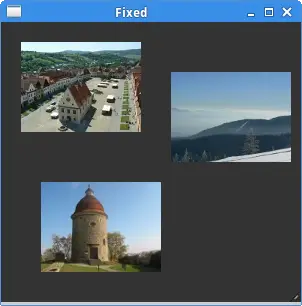
在我们在例子中我们在窗口上显示了三张图片。我们明确的指定了这些图片的x、y坐标的位置。


modify_bg Gtk::STATE_NORMAL, Gdk::Color.new(6400, 6400, 6440)

为了更好的显示体验,我们修改背景颜色为灰色。


bardejov = Gdk::Pixbuf.new “bardejov.jpg”

从磁盘上加载图片为Pixbug对象。


image1 = Gtk::Image.new bardejov
image2 = Gtk::Image.new rotunda
image3 = Gtk::Image.new mincol

Image是用于显示图片的控件。在它的构造函数接收一个Pixbuf对象。


fixed = Gtk::Fixed.new

创建一个Fixed容器。


fixed.put image1, 20, 20

将第一张图片放在x=20,y=20的坐标位置上。


 add fixed

最后我们将Fixed窗口放入窗口中。


image1

图片:Fixed


按钮


Alignment容器用于控件它的子控件的对齐和大小。


#!/usr/bin/ruby

# ZetCode Ruby GTK tutorial
#
# In this program, we position two buttons
# in the bottom right corner of the window.
# We use horizontal and vertical boxes.
#
# author: jan bodnar
# website: www.zetcode.com
# last modified: June 2009

require ‘gtk2’


class RubyApp < Gtk::Window

def initialize
super

set_title “Buttons”
signal_connect “destroy” do
Gtk.main_quit
end

init_ui

set_default_size 260, 150
set_window_position Gtk::Window::POS_CENTER

show_all
end

def init_ui

vbox = Gtk::VBox.new false, 5
hbox = Gtk::HBox.new true, 3

valign = Gtk::Alignment.new 0, 1, 0, 0
vbox.pack_start valign

ok = Gtk::Button.new “OK”
ok.set_size_request 70, 30
close = Gtk::Button.new “Close”

hbox.add ok
hbox.add close

halign = Gtk::Alignment.new 1, 0, 0, 0
halign.add hbox

vbox.pack_start halign, false, false, 3

add vbox
end
end

Gtk.init
window = RubyApp.new
Gtk.main

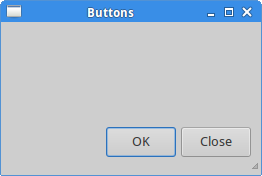
这个例子的代码中,我们将两个按钮放置在窗口的右下角。为了实现这个功能我们使用了两个垂直盒子和一个水平盒子和两个对齐容器。


valign = Gtk::Alignment.new 0, 1, 0, 0

这会将子控件放置在底部。


vbox.pack_start valign

这里我们将Alignment控件放置在竖直例子中。


hbox = Gtk::HBox.new true, 3

ok = Gtk::Button.new “OK”
ok.set_size_request 70, 30
close = Gtk::Button.new “Close”

hbox.add ok
hbox.add close

创建一个水平盒子并放入两个按钮。


halign = Gtk::Alignment.new 1, 0, 0, 0
halign.add hbox

vbox.pack_start halign, false, false, 3

这将会创建一个对齐容器用于将其子控件放置在右边。我们将水平盒子放入对齐容器里并将对齐容器放入竖直盒子中。我们必须记住对齐容器只有一个子控件,这就是为什么我们要使用盒子容器。

image2

图片:按钮


计算器框架


Table控件将控件按行和列进行排序。


#!/usr/bin/ruby

# ZetCode Ruby GTK tutorial
#
# In this program we create a skeleton of
# a calculator. We use the Table widget.
#
# author: jan bodnar
# website: www.zetcode.com
# last modified: June 2009

require ‘gtk2’


class RubyApp < Gtk::Window

def initialize
super

set_title “Calculator”
signal_connect “destroy” do
Gtk.main_quit
end

init_ui

set_default_size 300, 250
set_window_position Gtk::Window::POS_CENTER

show_all
end

def init_ui

vbox = Gtk::VBox.new false, 2

mb = Gtk::MenuBar.new
filemenu = Gtk::Menu.new
file = Gtk::MenuItem.new “File”
file.set_submenu filemenu
mb.append file

vbox.pack_start mb, false, false, 0

table = Gtk::Table.new 5, 4, true

table.attach Gtk::Button.new(“Cls”), 0, 1, 0, 1
table.attach Gtk::Button.new(“Bck”), 1, 2, 0, 1
table.attach Gtk::Label.new, 2, 3, 0, 1
table.attach Gtk::Button.new(“Close”), 3, 4, 0, 1

table.attach Gtk::Button.new(“7”), 0, 1, 1, 2
table.attach Gtk::Button.new(“8”), 1, 2, 1, 2
table.attach Gtk::Button.new(“9”), 2, 3, 1, 2
table.attach Gtk::Button.new(“/“), 3, 4, 1, 2

table.attach Gtk::Button.new(“4”), 0, 1, 2, 3
table.attach Gtk::Button.new(“5”), 1, 2, 2, 3
table.attach Gtk::Button.new(“6”), 2, 3, 2, 3
table.attach Gtk::Button.new(“*”), 3, 4, 2, 3

table.attach Gtk::Button.new(“1”), 0, 1, 3, 4
table.attach Gtk::Button.new(“2”), 1, 2, 3, 4
table.attach Gtk::Button.new(“3”), 2, 3, 3, 4
table.attach Gtk::Button.new(“-“), 3, 4, 3, 4

table.attach Gtk::Button.new(“0”), 0, 1, 4, 5
table.attach Gtk::Button.new(“.”), 1, 2, 4, 5
table.attach Gtk::Button.new(“=”), 2, 3, 4, 5
table.attach Gtk::Button.new(“+”), 3, 4, 4, 5

vbox.pack_start Gtk::Entry.new, false, false, 0

vbox.pack_end table, true, true, 0

add vbox

end
end

Gtk.init
window = RubyApp.new
Gtk.main

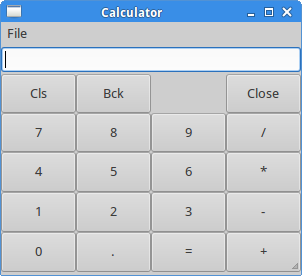
我们使用Table控件来创建计算器的框架。


table = Gtk::Table.new 5, 4, true

我们创建了一个有5行4列的表格控件。第三个参数是homogenous参数。如果设置为true那么表格中的所有控件都是一样大小的。控件的大小等于表格容器中最大的那个控件。


table.attach Gtk::Button.new(“Cls”), 0, 1, 0, 1

我们将一个按钮附加到表格容器的左上角。前两个参数是单元格的左右边界,后两个参数是单元格的上下边界。


vbox.pack_end table, true, true, 0

将表格控件打包放入竖直盒子里。

image3

图片:计算器框架


窗口


接下来我们创建一个更高级的例子。我们展示一个JDeveloper IDE中的窗口。


#!/usr/bin/ruby

# ZetCode Ruby GTK tutorial
#
# This is a more complicated layout example.
# We use Alignment and Table widgets.
#
# author: jan bodnar
# website: www.zetcode.com
# last modified: June 2009

require ‘gtk2’


class RubyApp < Gtk::Window

def initialize
super

set_title “Windows”
signal_connect “destroy” do
Gtk.main_quit
end

init_ui

set_default_size 300, 250
set_window_position Gtk::Window::POS_CENTER

show_all
end

def init_ui

set_border_width 15

table = Gtk::Table.new 8, 4, false
table.set_column_spacings 3

title = Gtk::Label.new “Windows”

halign = Gtk::Alignment.new 0, 0, 0, 0
halign.add title

table.attach(halign, 0, 1, 0, 1, Gtk::FILL,
Gtk::FILL, 0, 0)

frame = Gtk::Frame.new
table.attach(frame, 0, 2, 1, 3, Gtk::FILL | Gtk::EXPAND,
Gtk::FILL | Gtk::EXPAND, 1, 1)

activate = Gtk::Button.new “Activate”
activate.set_size_request 50, 30
table.attach(activate, 3, 4, 1, 2, Gtk::FILL,
Gtk::SHRINK, 1, 1)

valign = Gtk::Alignment.new 0, 0, 0, 0
close = Gtk::Button.new “Close”
close.set_size_request 70, 30
valign.add close
table.set_row_spacing 1, 3
table.attach(valign, 3, 4, 2, 3, Gtk::FILL,
Gtk::FILL | Gtk::EXPAND, 1, 1)

halign2 = Gtk::Alignment.new 0, 1, 0, 0
help = Gtk::Button.new “Help”
help.set_size_request 70, 30
halign2.add help
table.set_row_spacing 3, 6
table.attach(halign2, 0, 1, 4, 5, Gtk::FILL,
Gtk::FILL, 0, 0)

ok = Gtk::Button.new “OK”
ok.set_size_request 70, 30
table.attach(ok, 3, 4, 4, 5, Gtk::FILL,
Gtk::FILL, 0, 0)

add table
end
end

Gtk.init
window = RubyApp.new
Gtk.main

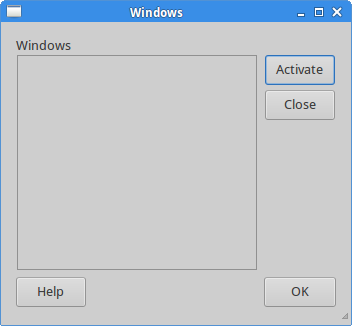
这个例子展示了我们如何可以使用Ruby GTK创建一个类似的窗口。


table = Gtk::Table.new 8, 4, false
table.set_column_spacings 3

这个例子是基于Table容器的。每个列之间有3像素的空隙。


title = Gtk::Label.new “Windows”

halign = Gtk::Alignment.new 0, 0, 0, 0
halign.add title

table.attach(halign, 0, 1, 0, 1, Gtk::FILL,
Gtk::FILL, 0, 0)

这个代码创建了一个左对齐的标签。这个标签放置在表格的第一行中。


frame = Gtk::Frame.new
table.attach(frame, 0, 2, 1, 3, Gtk::FILL | Gtk::EXPAND,
Gtk::FILL | Gtk::EXPAND, 1, 1)

frame控件跨度为2行2列。


valign = Gtk::Alignment.new 0, 0, 0, 0
close = Gtk::Button.new “Close”
close.set_size_request 70, 30
valign.add close
table.set_row_spacing 1, 3
table.attach(valign, 3, 4, 2, 3, Gtk::FILL,
Gtk::FILL | Gtk::EXPAND, 1, 1)

我们将关闭按钮放置在frame控件的下一个位置,在表格的第4列(我们是从0算起)。我们将按钮放在对齐控件内,这样我们就可以顶对齐了。


image4

图片:窗口


这部分的Ruby GTK教程,我们提到了布局控件。


原文地址: http://zetcode.com/gui/rubygtk/layoutmanagement/

翻译:龙昌 admin@longchangjin.cn

[翻译]Ruby GTK教程1——介绍

Ruby GTK介绍

在这部分的Ruby GTK编程教程中,我偿将介绍GTK库并且使用Ruby语言编写我们的第一个程序。


这个教程的目标是让你入门GTK和Ruby。贪吃蛇游戏的图片可以从这里下载


关于


GTK是一个领先的创建图形化用户界面的套件。Ruby是一个流行的脚本语言。


简单的例子


第一个例子我们创建一个简单的窗口。这个窗口位置屏幕中间。


#!/usr/bin/ruby

# ZetCode Ruby GTK tutorial
#
# This program centers a window on
# the screen
#
# author: jan bodnar
# website: www.zetcode.com
# last modified: April 2009

require ‘gtk2’

class RubyApp < Gtk::Window

def initialize
super

set_title “Center”
signal_connect “destroy” do
Gtk.main_quit
end

set_default_size 250, 200
set_window_position Gtk::Window::POS_CENTER

show
end
end

Gtk.init
window = RubyApp.new
Gtk.main

这个例子在屏幕中间显示了一个250x200像素的窗口。


require ‘gtk2’

require关键字导入了这个应用程序中将要使用的类。


class RubyApp < Gtk::Window

这个例子继承自WindowWindow是一个顶级容器。


set_title “Center”

设置窗口的标题。


signal_connect “destroy” do
Gtk.main_quit
end

当我们点击标题栏的关闭按钮或者按下Alt+F4时destroy事件被触发。main_quit正常退出应用程序。


set_default_size 250, 200

设置应用程序窗口的默认大小。


set_window_position Gtk::Window::POS_CENTER

将窗口放置在屏幕中间。


show

一些就绪,我们在屏幕上显示该窗口。


Gtk.init
window = RubyApp.new
Gtk.main

这三行启动应用程序。


创建提示框


第二个例子我们将显示一个提示框。提示框(Tooltip)是一个小的矩形窗口用于显示一些简洁的提示信息。它是一个常用的GUI组件。它是应用程序帮助系统的一部分。


#!/usr/bin/ruby

# ZetCode Ruby GTK tutorial
#
# This code shows a tooltip on
# a window and a button
#
# author: jan bodnar
# website: www.zetcode.com
# last modified: June 2009

require ‘gtk2’

class RubyApp < Gtk::Window

def initialize
super

set_title “Tooltips”
signal_connect “destroy” do
Gtk.main_quit
end

fixed = Gtk::Fixed.new
add fixed

button = Gtk::Button.new “Button”
button.set_size_request 80, 35
button.set_tooltip_text “Button widget”

fixed.put button, 50, 50

set_tooltip_text “Window widget”
set_default_size 250, 200
set_window_position Gtk::Window::POS_CENTER

show_all

end
end

Gtk.init
window = RubyApp.new
Gtk.main

这个例子创建了一个窗口。如果我们将鼠标光标放在窗口的区域中,将会出现一个提示框。


button.set_tooltip_text “Button widget”

我们使用set_tooltip_text方法设置一个提示框。


image1

图片:提示框


退出按钮


在这节的最后一个例子我们将创建一个退出按钮。当我们按下这个按钮时程序结束。


#!/usr/bin/ruby

# ZetCode Ruby GTK tutorial
#
# This program creates a quit
# button. When we press the button,
# the application terminates.
#
# author: jan bodnar
# website: www.zetcode.com
# last modified: June 2009

require ‘gtk2’

class RubyApp < Gtk::Window

def initialize
super

set_title “Quit button”
signal_connect “destroy” do
Gtk.main_quit
end

init_ui

show_all
end

def init_ui

fixed = Gtk::Fixed.new
add fixed

button = Gtk::Button.new “Quit”
button.set_size_request 80, 35
button.signal_connect “clicked” do
Gtk.main_quit
end

fixed.put button, 50, 50

set_default_size 250, 200
set_window_position Gtk::Window::POS_CENTER
end
end

Gtk.init
window = RubyApp.new
Gtk.main

我们使用一个按钮控件。这是一个非常平常的控件。它显示一个文本、图像或者两者都显示。


init_ui

我们将用户接口的创建委派给init_ui方法。


show_all

我们有两个选择。对每个控件都调用show,或者调用show_all显示容器的所有了子控件。


button = Gtk::Button.new “Quit”

这里创建一个按钮控件。


button.set_size_request 80, 35

设置按钮的大小。


button.signal_connect “clicked” do
Gtk.main_quit
end

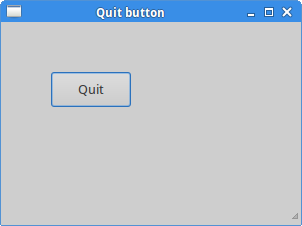
我们将main_quit方法插入到按钮的点击事件中。


fixed.put button, 50, 50

将退出按钮放在fixed容器的x=50,y=50的位置。
image2

图片:退出按钮


这一节我们介绍Ruby语言的GTK库。


原文地址: http://zetcode.com/gui/rubygtk/introduction/

翻译:龙昌 admin@longchangjin.cn

[翻译]Ruby教程15——输入&输出

Ruby的输入&输出

这部分的教程我们讨论Ruby的输入和输出操作。输入是程序从键盘、文件或者其他程序读取数据。输出是程序产生数据。可以输出到屏幕、文件或者其他程序。


输入&输出是一个大的话题。稍后我们通过一些例子来大概介绍一下这个主题。Ruby中的一些类有些方法会执行输入&输出操作。例如Kernel、IO、Dir或者File。


输出到终端


Ruby有一些在终端上打印输出的方法。这些方法是Kernel模块的一部分。Kernel模块的方法对于所有的Ruby对象都是有效的。


#!/usr/bin/ruby

print “Apple “
print “Apple\n”

puts “Orange”
puts “Orange”

printputs方法会将文本输出到终端。它们的不同是会在最后加上一个换行符。


print “Apple “
print “Apple\n”

print在终端上打印两个连续的”Apple”字符串。如果我们想换一行,我们就必须显示的包含一个换行符。换行符是’\n’。print方法实际上是调用了对象的to_s方法。


puts “Orange”
puts “Orange”

puts方法在终端上打印两个字符串。每一个都各在一行。这个方法会自己添加换行符。


$ ./printing.rb
Apple Apple

Orange

Orange


printing.rb脚本的输出结果。


根据Ruby的文档,print方法与$stdout.print是等效的。$stdout是全局变量,保存的标准输出流。


#!/usr/bin/ruby

$stdout.print “Ruby language\n”
$stdout.puts “Python language”

我们使用$stdout变量打印两行内容。


Ruby有另外三种输出方法。


#!/usr/bin/ruby

p “Lemon”
p “Lemon”

printf “There are %d apples\n”, 3

putc ‘K’
putc 0xA

这个例子中,我们展示了p、printf和putc方法。


p “Lemon”

p会调用对象的inspect方法。这个方法对于调试很有用。


printf “There are %d apples\n”, 3

printf方法因C语言而出名。它能够将字符串格式化。


putc ‘K’
putc 0xA

putc方法在终端上打印一个字符。第二行是打印一个换行符。0xA是换行符的十六进制代码。


$ ./printing3.rb

“Lemon”

“Lemon”

There are 3 apples

K


printing3.rb的输出。


使用Kernel的方法在终端上打印数据是简短方便的方式。接下来的例子展示了更多在终端上打印数据的正式方法。


ios = IO.new STDOUT.fileno
ios.write “ZetCode\n”
ios.close

这个例子我们打开标准输出流并往其中写入字符串。


ios = IO.new STDOUT.fileno

new方法返回一个可写的数据流。这个方法传入一个文件描述符数字。STDOUT.fileno返回了标准输出流的文件描述符。我们也可以直接写2。


ios.write “ZetCode\n”

我们往打开的数据流写入字符串。


ios.close

关闭输出流。


在Unix系统中标准的终端输出是连接到一个特殊的文件/dev/tty。将其打开并写入数据,既是写到终端上。


#!/usr/bin/ruby

fd = IO.sysopen “/dev/tty”, “w”
ios = IO.new(fd, “w”)
ios.puts “ZetCode”
ios.close

写入到/dev/tty文件的一个例子。这仅能够在Unix上运行。


fd = IO.sysopen “/dev/tty”, “w”

sysopen方法打开指定目录的文件,返回最后的文件描述符。


ios = IO.new(fd, “w”)

文件描述符数字用于打开一个数据流。


ios.puts “ZetCode”
ios.close

往数据流中写入字符串然后关闭它。


从终端输入


这一节我们将创建一些处理输入的代码例子。


$stdin是一个全局变量保存了标准输入流。它可以用于从终端输入数据。


#!/usr/bin/ruby

inp = $stdin.read
puts inp

上面的代码,我们使用read方法从终端读取输入。


inp = $stdin.read

read方法从标准输入读取数据直到文件结尾。EOF在Unix中是使用Ctrl + D产生,在Windows中是Ctrl + Z。


$ ./reading.rb

Ruby language

Ruby language


我们启动了程序,这个脚本会读取数据直到我们按下Ctrl + D 或者 Ctrl + Z。


$ echo “ZetCode” | ./reading.rb

ZetCode


$ ./input.rb < stones

Garnet

Topaz

Opal

Amethyst

Ruby

Jasper

Pyrite

Malachite

Quartz


如果我们使用重定向,脚本可以从其他程序或者文件中读取数据。


通常从终端读取数据是使用gets方法。


#!/usr/bin/ruby

print “Enter your name: “
name = gets
puts “Hello #{name}”

使用gets方法读取用户输入的一行数据。


name = gets

gets方法从标准输入读取数据并分配给name变量。


puts “Hello #{name}”

打印输入的数据。


$ ./readline.rb

Enter your name: Jan

Hello Jan


输出结果。


接下来的两个脚本我们讨论chomp方法。它是字符串方法,用于移除字符串结尾的空白。当我们执行输入操作时它很有用。这个方法名和用法来自Perl语言。


#!/usr/bin/ruby

print “Enter a string: “
inp = gets

puts “The string has #{inp.size} characters”

读取一个用户输入的字符串,并计算它的长度。


$ ./nochomp.rb

Enter a string: Ruby

The string has 5 characters


这个提示表示了这个字符串有5个字符,因为它统计的换行符。


为了得到正确的结果,我们需要移除换行符。这正是chomp方法的作用。


#!/usr/bin/ruby

print “Enter a string: “
inp = gets.chomp

puts “The string has #{inp.size} characters”

这次我们使用chomp方法截掉了换行符。


$ ./chomp.rb

Enter a string: Ruby

The string has 4 characters


Ruby字符串有4个字符。


文件


从Ruby官方文档我们知道IO类是所有输入输出的基类。File类只是IO类的一个子类。这两个类是紧密相关的。


#!/usr/bin/ruby

f = File.open(‘output.txt’, ‘w’)
f.puts “The Ruby tutorial”
f.close

第一个例子我们打开一个文件并往里面写入一些数据。


f = File.open(‘output.txt’, ‘w’)

以写模式打开’output.txt’文件。open方法返回数据流。


f.puts “The Ruby tutorial”

往上面打开的数据流写入数据。puts方法也可用于往文件写入数据。


f.close

最后关闭数据流。


$ ./simplewrite.rb

$ cat output.txt

The Ruby tutorial


执行脚本并显示output.txt文件的内容。


以下是一个类似的例子显示了额外的方法。


#!/usr/bin/ruby

File.open(‘langs’, ‘w’) do |f|

f.puts “Ruby”
f.write “Java\n”
f << “Python\n”

end

如果open方法之后是一个代码块,Ruby会将打开的数据流传递给这个代码块。最后这个文件会自动关闭。


f.puts “Ruby”
f.write “Java\n”
f << “Python\n”

我们使用了三个方法写文件。


$ ./simplewrite2.rb

$ cat langs

Ruby

Java

Python


执行这个脚本并查看里面的内容。


第二个例子我们显示一些File类的方法。


#!/usr/bin/ruby

puts File.exists? ‘tempfile’

f = File.new ‘tempfile’, ‘w’
puts File.mtime ‘tempfile’
puts f.size

File.rename ‘tempfile’, ‘tempfile2’

f.close

这个例子创建了一个新文件’tempfile’并调用了一些方法。


puts File.exists? ‘tempfile’

exists?方法检查给定的文件是否存在。这行返回false,因为我们还没有创建这个文件。


f = File.new ‘tempfile’, ‘w’

创建文件。


puts File.mtime ‘tempfile’

mtime方法返回这个文件的最后修改时间。


puts f.size

查看文件的大小。这里返回0,因为我们还没有往文件写入数据。


File.rename ‘tempfile’, ‘tempfile2’

最后我们使用rename将文件重命名。


$ ./testfile.rb

false

2011-11-05 16:19:36 +0100

0


输出结果。


接下来我们从磁盘文件读取内容。


#!/usr/bin/ruby

f = File.open(“stones”)

while line = f.gets do
puts line
end

f.close

这是一个简单的脚本,打开stones文件并在终端上打印它的内容。


f = File.open(“stones”)

打开’stones’文件,默认是只读模式。


while line = f.gets do
puts line
end

gets方法从I/O数据流读取一行数据。当读到文件结尾时while代码块退出。


$ ./readlines2.rb

Garnet

Topaz

Opal

Amethyst

Ruby

Jasper

Pyrite

Malachite

Quartz


例子输出结果。


下一个例子将从文件读取数据。


#!/usr/bin/ruby

fname = ‘alllines.rb’

File.readlines(fname).each do |line|
puts line
end

这个脚本显示了另一个读取文件内容的方式。这个例子将它自己的代码打印在终端上。


File.readlines(fname).each do |line|
puts line
end

readlines读取指定文件的每一行内容,并作为数据返回。我们使用each方法遍历数组,并将其在终端上打印。


$ ./alllines.rb
#!/usr/bin/ruby

fname = ‘alllines.rb’

File.readlines(fname).each do |line|
puts line
end

输出结果。


目录


在这一节我们使用目录。Ruby中有一个Dir类可以操作目录。


#!/usr/bin/ruby

Dir.mkdir “tmp”
puts Dir.exists? “tmp”

puts Dir.pwd
Dir.chdir “tmp”
puts Dir.pwd

Dir.chdir ‘..’
puts Dir.pwd
Dir.rmdir “tmp”
puts Dir.exists? “tmp”

这个脚本我们使用了Dir类的四个方法。


Dir.mkdir “tmp”

mkdir方法创建一个新目录’tmp’。


puts Dir.exists? “tmp”

使用exists?方法检查一个目录是否存在。


puts Dir.pwd

pwd方法打印当前的工作目录。这是我们启动脚本的目录。


Dir.chdir ‘..’

chdir方法切换目录。’..’目录是当前工作目录的父目录。


Dir.rmdir “tmp”
puts Dir.exists? “tmp”

最后我们使用rmdir方法移除目录。这时exists?方法返回false。


$ ./dirs.rb

true

/home/vronskij/programming/ruby/io

/home/vronskij/programming/ruby/io/tmp

/home/vronskij/programming/ruby/io

false


例子的输出结果。
第二个例子我们检索目录所有的条目,包括文件和子目录。


#!/usr/bin/ruby

fls = Dir.entries ‘.’
puts fls.inspect

entries 方法返回指定目录的所有条目。


fls = Dir.entries ‘.’
puts fls.inspect

我们得到了当前目录下的文件和目录数组。’.’代表当前工作目录。inspect方法使得数组更加可读。


$ ./allfiles.rb

[“putc.rb”, “simplewrite.rb”, “readlines2.rb”, “fileexists.rb~” …


输出结果。


第三个例子使用了home目录。每个计算机用户都有一个分配给他的唯一的目录,称为home目录。它是用于存放用户自己的文件。


#!/usr/bin/ruby

puts Dir.home
puts Dir.home ‘root’

这个脚本打印两个home目录。


puts Dir.home

如果没有指定用户名则返回当前用户的home目录。当前用户是指定启动这个脚本文件的用户。


puts Dir.home ‘root’

这里我们指定了一个用户。


$ ./homedir.rb

/home/vronskij

/root


输出结果。


执行外部程序


Ruby有一些方式可以执行外部程序。我们的例子中我们使用了Linux中有名的命令。Windows或者Mac读取可以使用他们自己系统的命令。


#!/usr/bin/ruby

data = system ‘ls’
puts data

调用ls命令列出目录内容。


data = system ‘ls’

system命令在一个子shell中执行外部程序。这个方法是属于Kernel Ruby 模块的。


$ ./system.rb

allfiles.rb characters.rb fileexists.rb homedir.rb~ …


输出结果。


我们展示另外两个执行外部程序的方式。


#!/usr/bin/ruby

out = pwd
puts out

out = %x[uptime]
puts out

out = %x[ls | grep ‘readline’]
puts out

执行外部程序我们可以使用反引号`和%x[]字符。</p> <pre><code>out =pwd`

这里我们使用反引号执行pwd命令。这个命令返回当前的工作目录。


out = %x[uptime]

这里我得到uptime命令的输出,它显示系统运行了多久。


out = %x[ls | grep ‘readline’]

我们也可以使用复合命令。


$ ./system2.rb

/home/vronskij/programming/ruby/io

22:50:50 up 5:32, 1 user, load average: 0.46, 0.44, 0.45

readline.rb

readline.rb~

readlines2.rb

readlines2.rb~


输出结果。


我们可以使用open方法执行命令。这个方法是属于Kernel模块的。它创建一个IO对象连接到指定的数据流、文件或者子进程。如果我们想要连接到子进程,我们将打开路径以管道符(|)开头。


#!/usr/bin/ruby

f = open(“|ls -l |head -3”)
out = f.read
puts out
f.close

puts $?.success?

这个例子我们打印了ls -l | head -3命令的结果。我们也还检查了子进程的状态。


f = open(“|ls -l |head -3”)

连接到子进程。


out = f.read
puts out

读取并打印子进程的数据。


f.close

关闭文件句柄。


puts $?.success?

$?是一个特殊的变量,设置为上次执行过的子进程。如果子进程成功退出success?方法返回true。


$ ./system3.rb

total 148

-rwxr-xr-x 1 vronskij vronskij 57 2011-10-30 23:33 allfiles.rb

-rwxr-xr-x 1 vronskij vronskij 58 2011-10-30 23:33 allfiles.rb~

true


输出结果。


重定向标准输出


Ruby对标准输入、标准输出和标准错误输出都有预定义的全局变量。$stdout 是标准输出的变量名。


#!/usr/bin/ruby

$stdout = File.open “output.log”, “a”

puts “Ruby”
puts “Java”

$stdout.close
$stdout = STDOUT

puts “Python”

上面的例子我们将输出重定向到output.log文件。


$stdout = File.open “output.log”, “a”

这行创建一个新的标准输出。现在标准输出流向ouput.log文件。这个文件以追加方式打开,如果文件不存在则创建,否则打开并将数据追加到文件尾部。


puts “Ruby”
puts “Java”

打印两个字符串。这些字符串不会像平常一样在终端上显示了。而是追加到output.log文件中。


$stdout.close

关闭文件句柄。


$stdout = STDOUT

puts “Python”

使用预定义的常量STDOUT重新创建正常的标准输出。”Python”字符串在终端上打印。


这部分的教程我们使用了输入和输出操作。


原文地址: http://zetcode.com/lang/rubytutorial/io/

翻译:龙昌 admin@longchangjin.cn

完整教程:https://github.com/wusuopu/Ruby-tutorial
[翻译]Ruby教程14——正则表达式

Ruby的正则表达式

在这部分和教程中我们将讨论正则表达式。


正则表达式用于文本搜索和更高级的文本操作。内建正则表达式的工具如grep、sed;文本编辑器如vi、emacs;编程语言如Tcl、Perl、Python。Ruby也内建支持正则表达式。


从另一方面来看正则表达式语法构成了一个文本匹配的领域专用语言。


pattern(模式)是一个正则表达式,它定义了我们要搜索或者操作的文本。它由文本字面和元字符构成。模式位于两个分隔符内。在Ruby中是//字符。它们通知正则表达式函数的开始和结束。


这里是元字符的部分列表。


. 匹配任意一个字符
匹配前一个元素0次或多次
[] 括号表达式。匹配括号内的一个字符
[^] 匹配不在括号内的一个字符
^ 匹配字符串的开始位置
$ 匹配字符串的结束位置
| 交替操作


=~操作符对字符串匹配正则表达式,如果匹配则返回匹配字符串的偏移量否则为nil。 RegExp类是用来开发正则表达式。还有两个速记的方式来创建正则表达式。下面的例子将显示它们。


#!/usr/bin/ruby

re = Regexp.new ‘Jane’
p “Jane is hot”.match re

p “Jane is hot” =~ /Jane/
p “Jane is hot”.match %r{Jane}

第一个例子我们显示了对字符串应用正则表达式的三种方式。


re = Regexp.new ‘Jane’
p “Jane is hot”.match re

上面两行我们创建了一个简单的包含正则表达式文本的Regexp对象。使用match方法我们对“Jane is hot”句子应用这个正则表达式。检查’Jance’是否在这个句子中。


p “Jane is hot” =~ /Jane/
p “Jane is hot”.match %r{Jane}

这两行完成相同的工作。两个斜杠//和%R{}字符是第一种方式的简写。在这个教程中,我们将使用斜杠。这是在许多语言中是事实上的标准。


$ ./regex.rb
#<MatchData “Jane”>
0
#<MatchData “Jane”>

这三种情况都匹配的。match方法返回匹配的数据,如果没有则返回nil。=~操作符返回第一个匹配的字符的位置,或者nil。


点字符


点字符是一个可以匹配任意单字符的正则表达式字符。注意必须要有些字符,它不能被忽略。


#!/usr/bin/ruby

p “Seven”.match /.even/
p “even”.match /.even/
p “eleven”.match /.even/
p “proven”.match /.even/

第一个例子,我们对字符串使用match方法应用正则表达式。match方法成功则返回匹配到的数据,否则返回nil。


p “Seven”.match /.even/

“Seven”是一个字符串,可以调用match方法。这个方法的参数是一个模式。/.even/正则表达式模式是查找以任意字符开头接着是‘even’的字符串。


$ ./dot.rb
#<MatchData “Seven”>
nil
#<MatchData “leven”>
nil

从输出结果中我们看到哪些是匹配的哪些是没有匹配的。


正如前面所说的,如果有点字符,那么就必须要有一个任意的字符。它不能被忽略。如果我们想到查找一个文本,其中有字符能被忽略的。换言之,我们想要一个模式可以同时匹配’seven’和’even’。对于这个我们可以使用一个?重复字符。?重复字符表示前一个字符可能出现0或者1次。


#!/usr/bin/ruby

p “seven”.match /.even/
p “even”.match /.even/
p “even”.match /.?even/

这个脚本使用?重复字符。


p “even”.match /.even/

这行打印nil,因为正则表达式在’even’之前要接受一个字符。


p “even”.match /.?even/

我们稍微修改一下正则表达式。‘.?’代表没有字符或者有一个字符。这次匹配成功。


$ ./dot2.rb
#<MatchData “seven”>
nil
#<MatchData “even”>

输出结果。


正则表达式方法


前面的两个例子我们对正则表达式使用了match方法。除了match之外还有其他的方法也接受正则表达式参数。


#!/usr/bin/ruby

puts “motherboard” =~ /board/
puts “12, 911, 12, 111”[/\d{3}/]

puts “motherboard”.gsub /board/, “land”

p “meet big deep nil need”.scan /.[e][e]./
p “This is Sparta!”.split(/\s/)

这个例子显示了正则表达式的一些方法。


puts “motherboard” =~ /board/

=~操作符将正则表达式放在右边,字符串放在左边。


puts “12, 911, 12, 111”[/\d{3}/]

正则表达式可以位于字符串后面的中括号内。这行打印第一个3个数字。


puts “motherboard”.gsub /board/, “land”

使用gsub方法我们将’board’字符串替换成’land’。


p “meet big deep nil need”.scan /.[e][e]./

scan方法查找字符串匹配。它会查找所有出现的匹配,而不仅是第一个。这行打印所有与模式匹配的字符串。


p “This is Sparta!”.split(/\s/)

split方法使用给定的正则式来分隔字符串。\s字符代表了任何空白字符。


$ ./apply.rb
6
911
motherland
[“meet”, “deep”, “need”]
[“This”, “is”, “Sparta!”]

apply.rb脚本的输出结果。


特殊变量


一些使用正则式的方法会激活一些特殊的变量。包括上次匹配的字符串、上次匹配结果的前面部分和上次匹配结果的后面部分。这些变量方便了程序员。


#!/usr/bin/ruby

puts “Her name is Jane” =~ /name/

p $p $&amp; p $' </code></pre> <p>这个例子显示了三个特殊的变量。</p> <pre><code>puts "Her name is Jane" =~ /name/ </code></pre> <p>这行代码是一个简单的正则式匹配。我们在'Her name is Jane'句子中查找'name'。我们使用=~操作符。这个操作符也会设置三个特殊的变量。这行返回数字4。</p> <pre><code>p $

$</em>特殊变量包含了上次匹配结果之前的文本。</p> <pre><code>p $&amp; </code></pre> <p><em>$&amp;</em>为匹配的文本。</p> <pre><code>p $' </code></pre> <p><em>$'</em>变量包含上次匹配结果之后的文本。</p> <p>$ ./svars.rb<br> 4<br> "Her "<br> "name"<br> " is Jane" </p> <p>例子的输出结果。</p> <h2>锚点</h2> <p>锚点是在文本中匹配位置的字符。我们展示三个锚点字符。^字符匹配了行的开头;$字符匹配了行的结尾;\b字符匹配词的边界。</p> <pre><code>#!/usr/bin/ruby sen1 = "Everywhere I look I see Jane" sen2 = "Jane is the best thing that happened to me" p sen1.match /^Jane/ p sen2.match /^Jane/ p sen1.match /Jane$/ p sen2.match /Jane$/ </code></pre> <p>第一个例子我们使用了^和$。</p> <pre><code>sen1 = "Everywhere I look I see Jane" sen2 = "Jane is the best thing that happened to me" </code></pre> <p>有两个句子。'Jane'位于第一个的结尾第二个的开头。</p> <pre><code>p sen1.match /^Jane/ p sen2.match /^Jane/ </code></pre> <p>这里我们查找这两个句子是否以'Jane'开头。</p> <pre><code>p sen1.match /Jane$/ p sen2.match /Jane$/ </code></pre> <p>这里我们在句子结尾查找匹配。</p> <pre><code>$ ./anchors.rb nil #&lt;MatchData "Jane"&gt; #&lt;MatchData "Jane"&gt; nil </code></pre> <p>运行结果。</p> <hr> <p>通常一个请求仅包含一个匹配全部的词。我们会默认计算所有匹配,包括更大的或者复合词。让我们通过一个例子来阐述。</p> <pre><code>#!/usr/bin/ruby text = "The cat also known as the domestic cat is a small, usually furry, domesticated, carnivorous mammal." p text.scan /cat/ p $
p $&
p $’

有一个句子。我们使用scan在这个句子中查找所有的’cat’字符串。


text = “The cat also known as the domestic cat is a small,
usually furry, domesticated, carnivorous mammal.”

问题是这个文本中有三个’cat’字符串。要匹配的’cat’表示一个哺乳动物,/cat/却匹配了’domesticated’词的8-10的字母。这不是我们想要的。


$ ./boudaries.rb
[“cat”, “cat”, “cat”]
“The cat also known as the domestic cat is a small, \nusually furry, domesti”
“cat”
“ed, carnivorous mammal.”

最后一次匹配的’domesticated’在下一个例子中将被使用\b锚点字符排除。


\b字符用于设置要查找的词的边界。


#!/usr/bin/ruby

text = “The cat also known as the domestic cat is a small,
usually furry, domesticated, carnivorous mammal.”

p text.scan /\bcat\b/

p $`
p $&
p $’

这个例子使用\b元字符进行了改善。


p text.scan /\bcat\b/

使用上面的正则式我们将查找’cat’整个词,不计算子词。


字符类


我们可以结合方括号将字符转换成字符类。字符类可以匹配在方括号内的任意字符。/[ab]/模式意味a或者b,相反的/ab/意味着a接着b。


#!/usr/bin/ruby

words = %w/ sit MIT fit fat lot pad /

pattern = /[fs]it/

words.each do |word|
if word.match pattern
puts “#{word} matches the pattern”
else
puts “#{word} does not match the pattern”
end
end

有一系列的6个3字母的单词。我们对数组的每个字符串采用特定字符集的正则式。


pattern = /[fs]it/

这个式模式在这个数组中查找到了’fit’、’sit’。我们从字符集使用’f’或者’s’。


$ ./classes.rb

sit matches the pattern

MIT does not match the pattern

fit matches the pattern

fat does not match the pattern

lot does not match the pattern

pad does not match the pattern


有两个匹配的。


一个例子我们将进一步探讨字符类。


#!/usr/bin/ruby

p “car”.match %r{[abc][a][rs]}
p “car”.match /[a-r]+/
p “23af 433a 4ga”.scan /\b[a-f0-9]+\b/

例子中有三个字符类正则式。


p “car”.match %r{[abc][a][rs]}

这行的正则式由三个字符类构成。每个都对应一个字符。[abc]是a、b或者c。[a]就是a。第三个[rs]是r或者s。这里匹配’car’字符串。


p “car”.match /[a-r]+/

我们在字符类中使用了一个连接符-。连接符是一个元字符表示一个范围:这里是a, b, c, d, e, f, g, h, i, j, k, l, m, n, o, p, q, 或r。由于字符类仅对应一个字符。我们也可以使用+重复字符。这表示前一个字符集的字符可以重复一次或者多次。’car’字符串被匹配了。


p “23af 433a 4ga”.scan /\b[a-f0-9]+\b/

这行有一个由三个子字符串构成的字符串。使用scan方法检查十六进制整数。我们有两个范围。第一个[a-f]代表a到f的字符。第二个[0-9]代表字数0到9。+表示这些字符可以重复多次。最后\b创建一个边界,表示仅接受由这些字符构成的字符串。


$ ./classes2.rb
#<MatchData “car”>
#<MatchData “car”>
[“23af”, “433a”]

输出结果。


如果字符类的第一个字符是脱字符(^),则对该类反转。它会匹配除了这些之外的任何字符。


#!/usr/bin/ruby

p “ABC”.match /[^a-z]{3}/
p “abc”.match /[^a-z]{3}/

这个例子我们在字符类中使用脱字符。


p “ABC”.match /[^a-z]{3}/

我们查找一个有3个字母的字符串。这些字母不能在a到z之间。”ABC”字符串匹配这个正则式,因为所有的三个字符都是大写字母。


p “abc”.match /[^a-z]{3}/

“abc”字符串没有匹配。


$ ./caret.rb
#<MatchData “ABC”>
nil

输出结果。


量词


标记或者组后面的量词表示前面的元素允许出现多少次。


 ?     - 0 or 1 match
      - 0 or more
+ - 1 or more
{n} - exactly n
{n,} - n or more
{,n} - n or less (??)
{n,m} - range n to m

上面是通常的量词列表。


#!/usr/bin/ruby

p “seven dig moon car lot fire”.scan /\w{3}/
p “seven dig moon car lot fire”.scan /\b\w{3}\b/

例子中我们想要选择这些有3个字符的单词。\w字符是一个词字符。\w{3}意味着前面的词字符出现3次。


p “seven dig moon car lot fire”.scan /\w{3}/

第一只是对每个字符串截取前三个字符。这不是我们想要的。


p “seven dig moon car lot fire”.scan /\b\w{3}\b/

这是改进的搜索。我们将之前的模式放在边界符\b之间。现在仅查找有三个字符的单词。


$ ./nchars.rb
[“sev”, “dig”, “moo”, “car”, “lot”, “fir”]
[“dig”, “car”, “lot”]

输出结果。


{n,m}是一个重复结构对于有n到m个字符的字符串。


#!/usr/bin/ruby

p “I dig moon lottery it fire”.scan /\b\w{2,4}\b/

上面的例子我们选择有2、3、4个字符的单词。我们再次使用了边界符\b。


$ ./rchars.rb
[“dig”, “moon”, “it”, “fire”]

这个例子打印了一个有2-4个字符的单词数组。


下一个例子我们展示?元字符。接着?的字符是可选的。?之前的字符可以出现一次或者0次。


#!/usr/bin/ruby

p “color colour colors colours”.scan /colou?rs/
p “color colour colors colours”.scan /colou?rs?/

p “color colour colors colours”.scan /\bcolor\b|\bcolors\b|\bcolour\b|\bcolours\b/

我们想要在一个文本中查找colour单词。这个单词有两种拼写方式,美式的’colour’和英式的’color’。我们想要两种都查找,此外我们还想查找复数形式。


p “color colour colors colours”.scan /colou?rs/

colou?rs模式查找’colours’和’colors’。u字符在?字符之前表示是可选的。


p “color colour colors colours”.scan /colou?rs?/

colou?rs?模式使u和s字符是可选的。因此我们会查找到这四个组合。


p “color colour colors colours”.scan /\bcolor\b|\bcolors\b|\bcolour\b|\bcolours\b/

相同的请求可以间隔的写。


$ ./qmark.rb
[“colors”, “colours”]
[“color”, “colour”, “colors”, “colours”]
[“color”, “colour”, “colors”, “colours”]

输出结果。


这节的最后一个例子我们展示+字符。它允许前面的字符重复1次或多次。


#!/usr/bin/ruby

nums = %w/ 234 1 23 53434 234532453464 23455636
324f 34532452343452 343 2324 24221 34$34232/

nums.each do |num|
m = num.match /[0-9]+/

if m.to_s.eql? num
puts num
end
end

这个例子我们有一个数字数组。数字可以有一个或者多个数字字符。


nums = %w/ 234 1 23 53434 234532453464 23455636
324f 34532452343452 343 2324 24221 34$34232/

这是一个字符串数组。其中有两个不是数字,因为它们包含了非数字字符。


nums.each do |num|
m = num.match /[0-9]+/

if m.tos.eql? num
puts num
end
end

我们遍历数组并对每个字符串应用正则式。表达式[0-9]+代表了0到9的任意字符重复0次或者多次。默认的这个表达式也会查找子字符串。
在34$34232中引擎认为34是一个数字。\b边界符在这里是无效的,因为我们没有具体的字符,引擎不知道该在哪里停止查找。这就是为什么我们在代码块中包含一个if条件式。仅当匹配结果等于原字符串才认为它是一个数字。


$ ./numbers.rb

234

1

23

53434

234532453464

23455636

34532452343452

343

2324

24221


这些的值是数字。


忽略大小写搜索


我们可以执行忽略大小写的搜索。正则表达式可以接一个选项。它是一个单一的字符,以某种方式修改模式。这里不区分大小写的搜索我们使用i选项。


#!/usr/bin/ruby

p “Jane”.match /Jane/
p “Jane”.match /jane/
p “Jane”.match /JANE/

p “Jane”.match /jane/i
p “Jane”.match /Jane/i
p “Jane”.match /JANE/i

这个例子显示了区分大小写和不区分大小写的搜索。


p “Jane”.match /Jane/
p “Jane”.match /jane/
p “Jane”.match /JANE/

这三行的字符必须完全匹配模式。仅有第一行是匹配的。


p “Jane”.match /jane/i
p “Jane”.match /Jane/i
p “Jane”.match /JANE/i

这里我们使用i选项,接在第二个/字符后面。我们进行不区分大小写的搜索。这三行者匹配了。


$ ./icase.rb
#<MatchData “Jane”>
nil
nil
#<MatchData “Jane”>
#<MatchData “Jane”>
#<MatchData “Jane”>

例子的输出结果。


交替


一个例子解释交替操作符(|)。这个操作符可以创建一个有多个选择的正则式。


#!/usr/bin/ruby

names = %w/Jane Thomas Robert Lucy Beky
John Peter Andy/

pattern = /Jane|Beky|Robert/

names.each do |name|

if name =~ pattern
puts “#{name} is my friend”
else
puts “#{name} is not my friend”
end
end

names数组中有8个名字。我们将在数组中查找多虑字符串的组合。


pattern = /Jane|Beky|Robert/

这是搜索模式。它表示Jane, Beky和Robert是我的朋友。如果你查找他们就会找到我的朋友。


$ ./alternation.rb

Jane is my friend

Thomas is not my friend

Robert is my friend

Lucy is not my friend

Beky is my friend

John is not my friend

Peter is not my friend

Andy is not my friend


这是脚本的输出结果。


子模式


我们可以使用括号()创建子模式。


#!/usr/bin/ruby

p “bookworm” =~ /book(worm)?$/
p “book” =~ /book(worm)?$/
p “worm” =~ /book(worm)?$/
p “bookstore” =~ /book(worm)?$/

我们有如下正则式模式:book(worm)?$。(worm)是一个子模式。仅有两个字符串可以匹配:’book’或者’bookworm’。接在子模式后面的?字符意味着这个子模式出现0或者1次。这里$字符确切的匹配字符串的结尾。没有它单词bookstore和bookmania也会被匹配。


#!/usr/bin/ruby

p “book” =~ /book(shelf|worm)?$/
p “bookshelf” =~ /book(shelf|worm)?$/
p “bookworm” =~ /book(shelf|worm)?$/
p “bookstore” =~ /book(shelf|worm)?$/

子模式经常是多个单词组合交替结合的。例如,book(shelf|worm)匹配’bookshelf’和’bookworm’,book(shelf|worm)?匹配’bookshelf’,’bookworm’和’book’。


$ ./subpatterns2.rb

0

0

0

nil


最后一个子模式没有匹配。记住0不意味着没有匹配。对于=~操作符,它是第一个匹配到的字符的索引。


邮箱例子


最后一个例子,我们创建一个正则式模式检查邮箱地址。


#!/usr/bin/ruby

emails = %w/ luke@gmail.com andy@yahoo.com 23214sdj^as
f3444@gmail.com /

pattern = /^[a-zA-Z0-9.
-]+@[a-zA-Z0-9-]+.[a-zA-Z.]{2,5}$/

emails.each do |email|

if email.match pattern
puts “#{email} matches”
else
puts “#{email} does not match”
end

end

注意这个例子提供了仅一种解决方案。它不需要是最好的。


emails = %w/ luke@gmail.com andy@yahoocom 23214sdj^as
f3444@gmail.com /

这是一个邮箱数组,仅有两个是有效的。


pattern = /^[a-zA-Z0-9.-]+@[a-zA-Z0-9-]+.[a-zA-Z.]{2,5}$/

这是一个模式,第一个^和最后一个$是获取完整匹配。在模式之前和之后都不允许有字符。邮箱分为5部分。第一部分是本地部分,它通常是公司、个体或者昵称的名字。[a-zA-Z0-9.-]+列出了所有可能用于本地部分的字符,它们可以使用一次或者多次。第二部分是字面符@,第三部分是域名部分。它通常是邮箱的提供商,如 yahoo或者gmail。字符集[a-zA-Z0-9-]+指明了所有的可以用于域名的字符。+量词将这些字符使用一次或者多次。第四部分是点字符。它的前面接一个转义符。(.)因为点字符是一个元字符具有特殊意义。转义之后得到一个字面上的点。最后一部分是顶级域名。这个模式是[a-zA-Z.]{2,5}。顶级域名有2到5个字符,如sk, net, info, travel。这同样也有点字符,这是因此一些顶级域名有两部分如co.uk。


$ ./email.rb

luke@gmail.com matches

andy@yahoocom does not match

23214sdj^as does not match

f3444@gmail.com matches


这个正则式标记了两个有效的邮箱地址。


在这章,我们学习了Ruby的正则表达式。


原文地址: http://zetcode.com/lang/rubytutorial/regex/

翻译:龙昌 admin@longchangjin.cn

完整教程:https://github.com/wusuopu/Ruby-tutorial

[翻译]Ruby教程13——面向对象2

Ruby的面向对象编程2

在这章的教程我们继续讨论Ruby的面向对象编程。


我们以属性修饰符开始。将会包涵类常量、类方法和操作符重载。我们将定义多态,并展示在Ruby中如何使用它。我们也会提及模块和异常。


属性修饰符


Ruby的所有变量都是私有的。它只能通过方法来访问。这些方法通常称为设值函数(setters)和获得者(getters)。创建一个setter和getter方法是很平常的事情。加些Ruby有便利的方法来创建这两种方法。它们是attr_readerattr_writerattr_accessor


attr_reader用于创建getter方法。attr_writer用于setter方法。attr_accessor用于创建两种方法。


#!/usr/bin/ruby

class Car

attr_reader :name, :price
attr_writer :name, :price

def to_s
“#{@name}: #{@price}”
end

end


c1 = Car.new
c2 = Car.new

c1.name = “Porsche”
c1.price = 23500

c2.name = “Volkswagen”
c2.price = 9500

puts “The #{c1.name} costs #{c1.price}”

p c1
p c2

定义了一个Car类,在类内部我们使用了attr_readerattr_writer创建了两个gettersetter方法。


attr_reader :name, :price

这里我们创建了两个实例方法名为:nameprice。注意attr_reader将方法名符号作为参数。


attr_writer :name, :price

attr_writer创建了两个setter方法nameprice和两个实例变量@name@price


c1.name = “Porsche”
c1.price = 23500

这里的上下文中调用了两个setter方法,为实例变量填充数据。


puts “The #{c1.name} costs #{c1.price}”

这里调用了两个getter方法获取数据。


$ ./arw.rb

The Porsche costs 23500

Porsche: 23500

Volkswagen: 9500


例子的输出结果。


正如上面阐述的,attr_accessor方法会创建gettersetter方法和它们的实例变量。


#!/usr/bin/ruby

class Book
attr_accessor :title, :pages
end

b1 = Book.new
b1.title = “Hidden motives”
b1.pages = 255

p “The book #{b1.title} has #{b1.pages} pages”

定义了一个Book类,它使用attr_accessor创建了两对方法和两个实例变量。


class Book
attr_accessor :title, :pages
end

attr_accessor方法设置了titlepages 方法以及@title@pages实例变量。


b1 = Book.new
b1.title = “Hidden motives”
b1.pages = 255

创建了一个Book对象。调用两个setter方法为对象的实例变量填充数据。


p “The book #{b1.title} has #{b1.pages} pages”

这行的代码我们调用getter方法读取实例变量的值。


$ ./accessor.rb

“The book Hidden motives has 255 pages”


例子的输出结果。


类的常量


Ruby允许创建类常量。这些常量不属于特定的对象,它们是属于类的。作为约定,常量以大写字母开头。


#!/usr/bin/ruby

class MMath

PI = 3.141592
end


puts MMath::PI

创建一个MMath类,包含了一个PI常量。


PI = 3.141592

我们创建了一个PI常量。记住在Ruby中常量不是强制的。


puts MMath::PI

使用::操作符访问PI常量。


$ ./classconstant.rb

3.141592


例子输出结果。


to_s方法


每个对象都有一个to_s方法,它返回该对象的一个字符串描述。注意puts方法将一个对象作为参数时,该对象的to_s方法将被调用。


#!/usr/bin/ruby

class Being

def to_s
“This is Being class”
end
end

b = Being.new
puts b.to_s
puts b

定义一个Being类并重载了to_s方法。


def to_s
“This is Being class”
end

每个创建的类都继承自基类Objectto_s方法属于这个类。我们重载了to_s方法,使得描述信息更加可读。


b = Being.new
puts b.to_s
puts b

创建一个Being的对象,调用两次to_s方法。第一次是显式调用,第二次是隐式调用。


$ ./tostring.rb

This is Being class

This is Being class


例子的运行结果。


操作符重载


操作符重载是基本参数的不同进行的操作也不同。


Ruby中操作符和方法仅有一点区别。


#!/usr/bin/ruby

class Circle

attr_accessor :radius

def initialize r
@radius = r
end

def +(other)
Circle.new @radius + other.radius
end

def to_s
“Circle with radius: #{@radius}”
end
end


c1 = Circle.new 5
c2 = Circle.new 6
c3 = c1 + c2

p c3

这个例子中,我们创建了一个Circle类,并重载了+操作符,用于将两个circle对象相加。


def +(other)
Circle.new @radius + other.radius
end

我们定义了一个名为+的方法,这个方法将两个circle对象的半径相加。


c1 = Circle.new 5
c2 = Circle.new 6
c3 = c1 + c2

创建两个circle对象。在第三行我们将这两个对象相加生成一个新的对象。


$ ./operatoroverloading.rb

Circle with radius: 11


这两个对象相加生成的第三个对象半径为11。


类方法


Ruby方法分为类方法和实例方法。类方法只能被类调用,不能被实例调用。


类方法不能访问实例变量。


#!/usr/bin/ruby

class Circle

def initialize x
@r = x
end

def self.info
“This is a Circle class”
end

def area
@r @r 3.141592
end

end


p Circle.info
c = Circle.new 3
p c.area

上面的例子展示了一个Circle类。除了构造函数之外,还有一个类方法和一个实例方法。


def self.info
“This is a Circle class”
end

self关键字开头的是类方法。


def area
“Circle, radius: #{@r}”
end

实例方法不以self关键字开头。


p Circle.info

调用类方法。注意我们是通过类来调用这个方法。


c = Circle.new 3
p c.area

为了调用实例方法我们必须得先创建一个对象。实例方法总是被对象调用。这里c变量保存了该对象,我们利用点操作符调用area方法。


$ ./classmethods.rb

“This is a Circle class”

28.274328


例子的输出描述了Ruby的类方法。


在Ruby中有三种方式创建类方法。


#!/usr/bin/ruby

class Wood

def self.info
“This is a Wood class”
end
end

class Brick

class << self
def info
“This is a Brick class”
end
end
end

class Rock

end

def Rock.info
“This is a Rock class”
end


p Wood.info
p Brick.info
p Rock.info

这个例子创建了三个类,每个都有一个类方法。


def self.info
“This is a Wood class”
end

类方法可以以self关键字开头。


class << self
def info
“This is a Brick class”
end
end

另一个方式是将方法定义放在class << self结构之后。


def Rock.info
“This is a Rock class”
end

这是第三种定义类方法的方式。


$ ./classmethods2.rb

“This is a Wood class”

“This is a Brick class”

“This is a Rock class”


调用WoodBrickRock这三个类的类方法的输出结果。


创建实例方法的三种方式


Ruby有三种基本的方式创建实例方法。实例方法是属于实例对象的。它们是通过对象使用点操作符调用。


#!/usr/bin/ruby

class Wood

def info
“This is a wood object”
end
end

wood = Wood.new
p wood.info

class Brick

attr_accessor :info
end

brick = Brick.new
brick.info = “This is a brick object”
p brick.info

class Rock

end

rock = Rock.new

def rock.info
“This is a rock object”
end

p rock.info

这个例子我们创建了三个实例对象WoodBrickRock。每个对象都有一介上实例方法。


class Wood

def info
“This is a wood object”
end
end

wood = Wood.new
p wood.info

这可能是最常用的一种方式。info方法定义在Wood类的内部。稍后创建一个对象并调用它的info方法。


class Brick

attr_accessor :info
end

brick = Brick.new
brick.info = “This is a brick object”
p brick.info

另一种创建实例方法的方式是使用属性修饰符。这是一种方便的方式可以减少程序员的按键输入。attr_accessor创建两个方法getter和setter,同样也创建一个实例变量用于存储数据。创建一个brick对象,数据使用setter方法保存在@info变量中。最后使用getter方法读取消息。


class Rock

end

rock = Rock.new

def rock.info
“This is a rock object”
end

p rock.info

第三种方法我们创建了一个空的Rock类。稍后实例化一个对象,动态的为这个对外创建一个方法。


$ ./threeways.rb

“This is a wood object”

“This is a brick object”

“This is a rock object”


例子的输出结果。


多态性


多态是使用一个操作符或者函数对不同的数据进行不同的处理。实践中多态意味着如果类B继承自类A,它没有必要将类A的所有都继承;它可以做一些与类A不同的事情。


注意静态语言如C++、Java、或者C#和动态语言如Python、Ruby的多态有些不同。在静态语言中编译器决定了方法的定义。在动态语言中我们专注了同名方法的不同操作。


#!/usr/bin/ruby

class Animal

def make_noise
“Some noise”
end

def sleep
puts “#{self.class.name} is sleeping.”
end

end

class Dog < Animal

def make_noise
‘Woof!’
end

end

class Cat < Animal

def make_noise
‘Meow!’
end
end

[Animal.new, Dog.new, Cat.new].each do |animal|
puts animal.make_noise
animal.sleep
end

我们创建了一个简单的继承结构。有一个Animal基类和两个后代CatDog。这三个类都有它自己的make_noise方法实现。后代的实现方法会替换掉Animal类的。


class Dog < Animal

def make_noise
‘Woof!’
end

end

Dog类的make_noise实现替换掉了Animal类的实现。


[Animal.new, Dog.new, Cat.new].each do |animal|
puts animal.make_noise
animal.sleep
end

为每个类的创建了一个实例对象,并对该对象调用了make_noise方法和sleep方法。


$ ./polymorhism.rb

Some noise

Animal is sleeping.

Woof!

Dog is sleeping.

Meow!

Cat is sleeping.


polymorhism.rb脚本的输出结果。


模块


一个Ruby模块是方法、类和常量的集合。模块与类相似也有些不同。模块不能创建实例,没有子类。


模块用于将相关的类、方法和常量聚集单独放在一个模块中。这样也避免了命名的冲突,因为模块将它包含的对象进行了封装。从这方面来看Ruby的模块与C#的命名空间和Java的包相似。


在Ruby中模块也支持混合类(mixins)。混入类(mixin)是一个创建多继承的工厂。如果一个类继承自多个类,则称为多继承。


#!/usr/bin/ruby

puts Math::PI
puts Math.sin 2

Ruby有一个内建的Math模块。它有许多方法和常量。我们使用::操作符访问PI常量。与类相同使用点操作符访问方法。


#!/usr/bin/ruby

include Math

puts PI
puts sin 2

如果我包含了一个模块,我们就可以直接引用Math的对象了。模块导入使用include关键字。


$ ./modules.rb

3.141592653589793

0.9092974268256817


程序的输出结果。


下面的例子我们展示了如何使用模块来组织代码。


#!/usr/bin/ruby

module Forest

class Rock ; end
class Tree ; end
class Animal ; end

end

module Town

class Pool ; end
class Cinema ; end
class Square ; end
class Animal ; end

end


p Forest::Tree.new
p Forest::Rock.new
p Town::Cinema.new

p Forest::Animal.new
p Town::Animal.new

Ruby代码可以主义分组。RocksTree属于ForestPoolsCinemaSquares属于Town。使用模块让我们的代码更加有条理。Animals可以在Forest里也可以有Town里。对于一个脚本我们不能定义两个Animal类,它们会冲突。将它们放在不同的模块即可解决这个问题。


p Forest::Tree.new
p Forest::Rock.new
p Town::Cinema.new

创建属于ForestTown的对象。我们使用::操作符访问模块里的对象。


p Forest::Animal.new
p Town::Animal.new

创建两个Animal对象。Ruby解释器会将它们标识为它们的模块名。


$ ./modules3.rb
#<Forest::Tree:0x97f35ec>
#<Forest::Rock:0x97f35b0>
#<Town::Cinema:0x97f3588>
#<Forest::Animal:0x97f3560>
#<Town::Animal:0x97f3538>

modules3.rb程序的输出。


这节的最后一个例子我们将展示使用模块进行多继承。在这里的上下文中模块称为混合类(mixins)。


#!/usr/bin/ruby

module Device
def switch_on ; puts “on” end
def switch_off ; puts “off” end
end

module Volume
def volume_up ; puts “volume up” end
def vodule_down ; puts “volume down” end
end

module Pluggable
def plug_in ; puts “plug in” end
def plug_out ; puts “plug out” end
end

class CellPhone
include Device, Volume, Pluggable

def ring
puts “ringing”
end
end

cph = CellPhone.new
cph.switch_on
cph.volume_up
cph.ring

我们定义了三个模块和一个类。模块代表了一些功能。一个设备可以调节开头。许多对象都可以分享这个功能,包含电视、手机、电脑和冰箱。相对于为每个对象创建这个功能,我们是将它分隔在一个模块里,它可以被每个对象包含。这样代码将更加有条理更紧凑。


module Volume
def volume_up ; puts “volume up” end
def vodule_down ; puts “volume down” end
end

Volume模块组织了负责控制音量等级的方法。如果一个设备需要这些方法,它只需要简单的在自己的类中包含这个模块即可。


class CellPhone
include Device, Volume, Pluggable

def ring
puts “ringing”
end
end

CellPhone添加了这三个模块。这些模块的方法混合在CellPhone类中。对于这个类的实例对象同样有效。CellPhone类也有一个自己的ring方法。


cph = CellPhone.new
cph.switch_on
cph.volume_up
cph.ring

创建了一个CellPhone对象并调用了三个方法。


$ ./mixins.rb

on

volume up

ringing


例子的运行结果。


异常


异常是对象偏离了正常的程序执行流的信号。

异常出现、抛出或者开始。


在应用程序执行期间,许多事情可能引起错误。磁盘满了我们不能保存文件。网络断了但应用程序试图连接某个网站。所有的这些可能引起应用程序崩溃。为了避免这个的发生,我们应当在程序异常时预先处理错误。对于这个我们可以使用异常处理。


异常是对象,它们是内建Exception类的后代。Exception对象携带了关于异常的信息。它的类型(异常的类名),可选的描述字符串,和一个可选的跟踪信息。为了获取关于程序运行异常的额外信息,程序可以子类化Exception或者更多是StandardError


#!/usr/bin/ruby

x = 35
y = 0

begin
z = x / y
puts z
rescue => e
puts e
p e
end

上面的程序我们故意的除以0,这个导致一个错误。


begin
z = x / y
puts z

出错的语句位置begin关键字之后。


rescue => e
puts e
p e
end

rescue关键字之后的代码我们处理一个异常。这里我们在终端上打印错误信息。e是一个异常对象,在错误发生时创建的。


$ ./zerodivision.rb
divided by 0
#<ZeroDivisionError: divided by 0>

输出结果我们看到了异常信息。最后一行显示了异常对象名为ZeroDivisionError


程序员可以使用raise关键字发起自己的异常。


#!/usr/bin/ruby

age = 17

begin
if age < 18
raise “Person is a minor”
end

puts “Entry allowed”
rescue => e
puts e
p e
exit 1
end

俱乐部不允许不满18岁的青年进入。我们使用Ruby脚本模拟这个情况。


begin
if age < 18
raise “Person is a minor”
end

puts “Entry allowed”

如果是未成年人,将出现一个异常。如果raise关键字没有指明异常参数,则RuntimeError异常将引发。这个代码不会到达puts “Entry allowed”这行。代码执行中断并继续rescue的代码块。


rescue => e
puts e
p e
exit 1
end

rescue代码块中我们打印错误信息,RuntimeError对象的一个字符串描述。我们也调用了exit方法通知环境该脚本错误退出。


$ ./raise_exception.rb
Person is a minor
#<RuntimeError: Person is a minor>
$ echo $?
1

未成年人不允许进行俱乐部。bash的$?变量设置了这个脚本错误退出。


Ruby的ensure从名创建的代码块总是会被执行,不管是否有异常。


#!/usr/bin/ruby

begin
f = File.open(“stones”, “r”)

while line = f.gets do
puts line
end

rescue => e
puts e
p e
ensure
f.close if f
end

这个例子我们尝试打开并读取stones文件。I/O操作容易出现错误。


ensure
f.close if f
end

ensure的代码块中我们关闭文件处理对象。我们查检处理对象是否存在,因为它可能没有被创建。分配的资源通常位于ensure代码块里。


如果想到,我们可以创建自定义的异常。Ruby中自定义异常继承自StandardError类。


#!/usr/bin/ruby

class BigValueError < StandardError ; end

LIMIT = 333
x = 3_432_453

begin

if x > LIMIT
raise BigValueError, “Exceeded the maximum value”
end

puts “Script continues”

rescue => e
puts e
p e
exit 1
end

我们有一个情况不能处理大的数字。


class BigValueError < StandardError ; end

我们定义一个BigValueError类。这个类继承自StandardError类。


LIMIT = 333

数字超过这个常量就被认为是大的。


if x > LIMIT
raise BigValueError, “Exceeded the maximum value”
end

如果值比LIMIT在,则抛出一个自定义异常。异常信息为“Exceeded the maximum value”


$ ./custom_exception.rb
Exceeded the maximum value
#<BigValueError: Exceeded the maximum value>

执行程序。


在这一章我们完成了Ruby语言的面向对象编程。


原文地址: http://zetcode.com/lang/rubytutorial/oop2/

翻译:龙昌 admin@longchangjin.cn

完整教程:https://github.com/wusuopu/Ruby-tutorial